

Use cases for W&B with Jupyter notebooks
- Iterative experimentation: Run and re-run experiments, tweak parameters, and have all your runs saved automatically to W&B without taking manual notes.
- Code saving: When reproducing a model, it’s hard to know which cells in a notebook ran, and in which order. Turn on code saving on your settings page to save a record of cell execution for each experiment.
- Custom analysis: Once runs are logged to W&B, you can get a dataframe from the API and do custom analysis, then log those results to W&B to save and share in reports.
Get started in a notebook
Start your notebook with the following code to install W&B and link your account:wandb.init() start a new cell with %%wandb. If you run this cell multiple times, W&B appends data to the run.
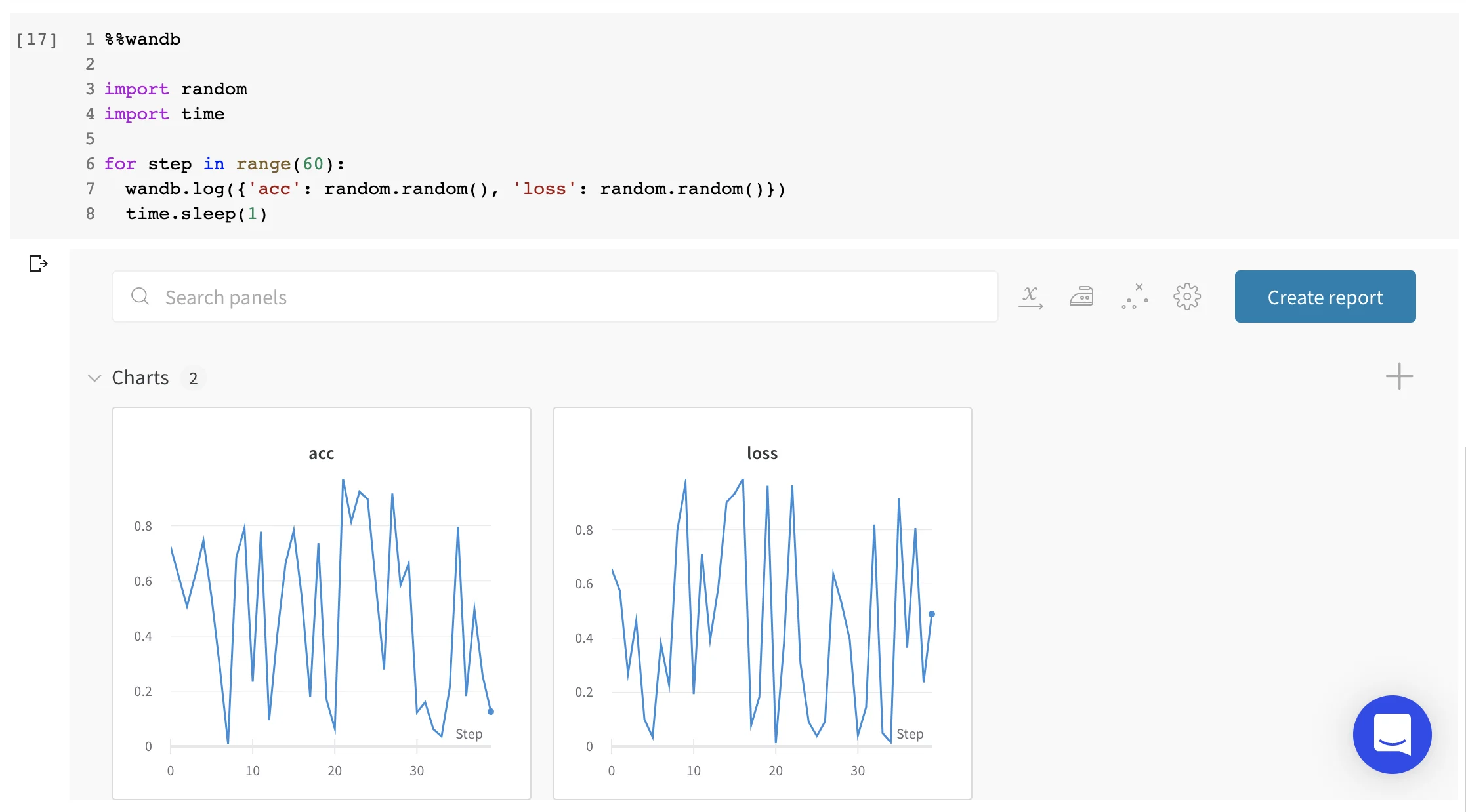
Render live W&B interfaces directly in your notebooks
You can also display any existing dashboards, sweeps, or reports directly in your notebook using the%wandb magic:
%%wandb or %wandb magics, after running wandb.init() you can end any cell with wandb.Run.finish() to show inline graphs, or call IPython.display(...) on any report, sweep, or run object returned from the W&B APIs.
To learn more about what you can do with W&B, see the guide to logging data and media, learn how to integrate W&B with ML toolkits, or go to the reference docs or the examples repo.
Additional Jupyter features in W&B
W&B includes several conveniences designed specifically for notebook workflows.- Streamlined authentication in Colab: When you call
wandb.init()for the first time in a Colab, W&B automatically authenticates your runtime if you’re logged in to W&B in your browser. On the Overview tab of your run page, you’ll see a link to the Colab. - Jupyter magic: Display dashboards, sweeps, and reports directly in your notebooks. The
%wandbmagic accepts a path to your project, sweeps, or reports and renders the W&B interface directly in the notebook. - Launch dockerized Jupyter: Call
wandb docker --jupyterto launch a Docker container, mount your code in it, ensure Jupyter is installed, and launch on port8888. - Run cells in arbitrary order: By default, W&B waits until the next time
wandb.init()is called to mark a run asfinished. That lets you run multiple cells (say, one to set up data, one to train, one to test) in any order and have them all log to the same run. If you turn on code saving in User Settings, you also log the cells that were executed, in order and in the state in which they were run, which lets you reproduce non-linear pipelines. To mark a run as complete manually in a Jupyter notebook, callwandb.Run.finish().