

- Track a single process: Track a rank 0 process (also known as a “leader” or “coordinator”) with W&B. This is a common solution for logging distributed training experiments with the PyTorch Distributed Data Parallel (DDP) class.
- Track multiple processes: For multiple processes, you can either:
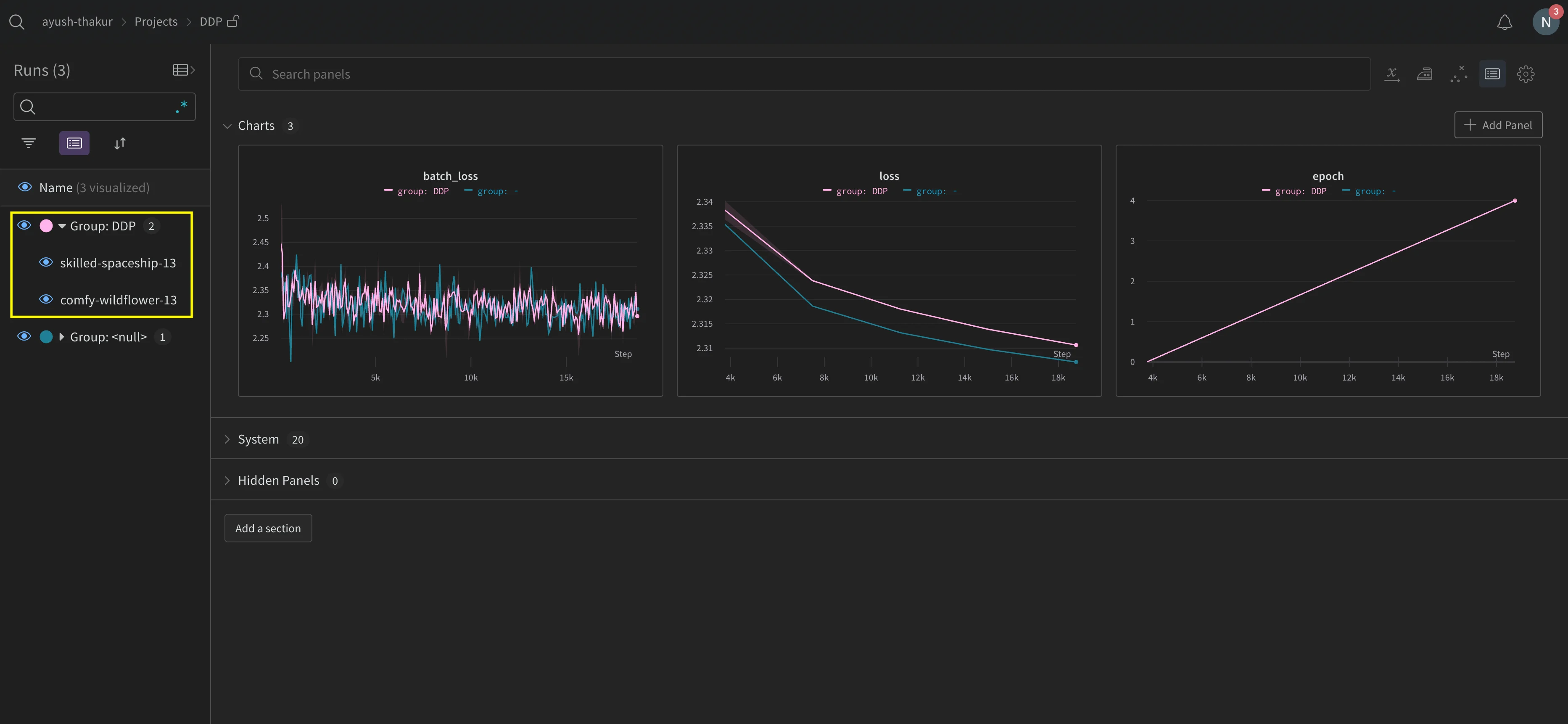
- Track each process separately using one run per process. You can optionally group them together in the W&B App UI.
- Track all processes to a single run.
Track a single process
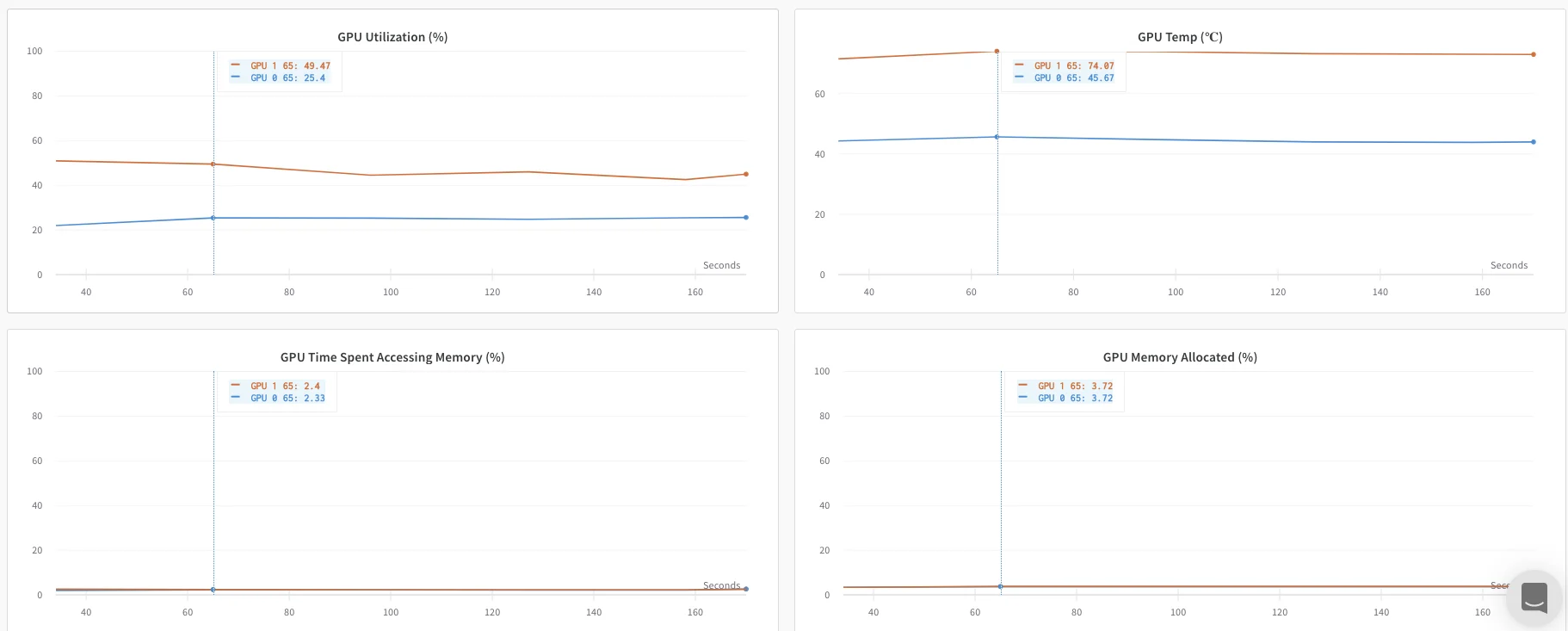
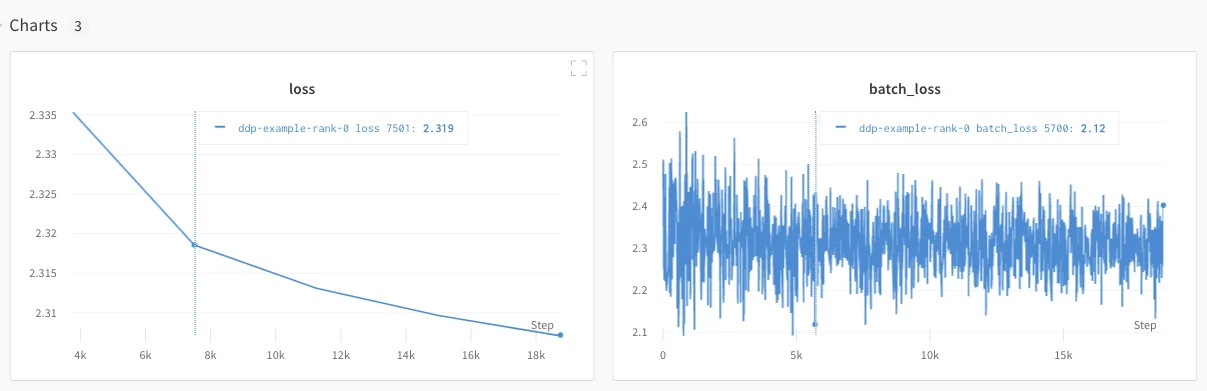
The following sections describe how to track values and metrics available to your rank 0 process. Use this approach to track only metrics that are available from a single process. Typical metrics include GPU/CPU utilization, behavior on a shared validation set, gradients and parameters, and loss values on representative data examples. Within the rank 0 process, initialize a W&B run withwandb.init() and log experiments (wandb.Run.log()) to that run.
The following sample Python script (log-ddp.py) demonstrates one way to track metrics on two GPUs on a single machine using PyTorch DDP. PyTorch DDP (DistributedDataParallel in torch.nn) is a library for distributed training. The basic principles apply to any distributed training setup, but the implementation may differ.
The Python script does the following:
- Starts multiple processes with
torch.distributed.launch. - Checks the rank with the
--local_rankcommand-line argument. - If the rank is set to 0, sets up
wandblogging conditionally in thetrain()function.
Track multiple processes
Track multiple processes with W&B when you need metrics, logs, or artifacts from more than only the rank 0 process. The following sections describe two approaches:- Track each process separately by creating a run for each process.
- Track all processes to a single run.
Track each process separately
The following sections describe how to track each process separately by creating a run for each process. Within each run you log metrics, artifacts, and so forth to their respective run. Callwandb.Run.finish() at the end of training, to mark that the run has completed so that all processes exit properly.
You might find it difficult to keep track of runs across multiple experiments. To mitigate this, provide a value to the group parameter when you initialize W&B (wandb.init(group='group-name')) to keep track of which run belongs to a given experiment. For more information about how to keep track of training and evaluation runs in experiments, see Group Runs.
Use this approach if you want to track metrics from individual processes. Typical examples include the data and predictions on each node (for debugging data distribution) and metrics on individual batches outside of the main node. This approach isn’t necessary to get system metrics from all nodes nor to get summary statistics available on the main node.
Organize distributed runs
Set thejob_type parameter when you initialize W&B (wandb.init(job_type='type-name')) to categorize your nodes based on their function. For example, you might have a main coordinating node and several reporting worker nodes. You can set job_type to main for the main coordinating node and worker for the reporting worker nodes:
job_type for your nodes, you can create saved views in your workspace to organize your runs. Click the action () menu and click Save as new view.
For example, you could create the following saved views:
-
Default view: Filter out worker nodes to reduce noise.
- Click Filter, then set Job Type to
worker. - Shows only your reporting nodes.
- Click Filter, then set Job Type to
-
Debug view: Focus on worker nodes for troubleshooting.
- Click Filter, then set Job Type
==workerand set State toINcrashed. - Shows only worker nodes that have crashed or are in error states.
- Click Filter, then set Job Type
-
All nodes view: See everything together.
- No filter.
- Useful for comprehensive monitoring.
Track all processes to a single run
RequirementsTo track multiple processes to a single run, you must have:
- W&B Python SDK version
v0.19.9or newer. - W&B Server v0.68 or newer.
wandb.init(). Pass in a wandb.Settings object to the settings parameter (wandb.init(settings=wandb.Settings()) with the following:
- The
modeparameter set to"shared"to enable shared mode. - A unique label for
x_label. You use the value you specify forx_labelto identify which node the data is coming from in logs and system metrics in the W&B App UI. If left unspecified, W&B creates a label for you using the hostname and a random hash. - Set the
x_primaryparameter toTrueto indicate that this is the primary node. - Optionally provide a list of GPU indexes (
[0, 1, 2]) tox_stats_gpu_device_idsto specify which GPUs W&B tracks metrics for. If you don’t provide a list, W&B tracks metrics for all GPUs on the machine.
x_primary=True distinguishes a primary node from worker nodes. Primary nodes are the only nodes that upload files shared across nodes such as configuration files, telemetry, and more. Worker nodes don’t upload these files.wandb.init() and provide the following:
- A
wandb.Settingsobject to thesettingsparameter (wandb.init(settings=wandb.Settings()) with:- The
modeparameter set to"shared"to enable shared mode. - A unique label for
x_label. You use the value you specify forx_labelto identify which node the data is coming from in logs and system metrics in the W&B App UI. If left unspecified, W&B creates a label for you using the hostname and a random hash. - Set the
x_primaryparameter toFalseto indicate that this is a worker node.
- The
- Pass the run ID used by the primary node to the
idparameter. - Optionally set
x_update_finish_statetoFalse. This prevents non-primary nodes from updating the run’s state tofinishedprematurely, ensuring the run state remains consistent and managed by the primary node.
- Use the same entity and project for all nodes. This helps ensure the correct run ID is found.
- Consider defining an environment variable on each worker node to set the run ID of the primary node.
See the Distributed Training with Shared Mode report for an end-to-end example on how to train a model on a multi-node and multi-GPU Kubernetes cluster in GKE.
- Navigate to the project that contains the run.
- Click the Runs tab in the project sidebar.
- Click the run you want to view.
- Click the Logs tab in the project sidebar.
x_label in the UI search bar on the console log page. For example, the following image shows the available filter options when you provide values rank0, rank1, rank2, rank3, rank4, rank5, and rank6 to x_label.
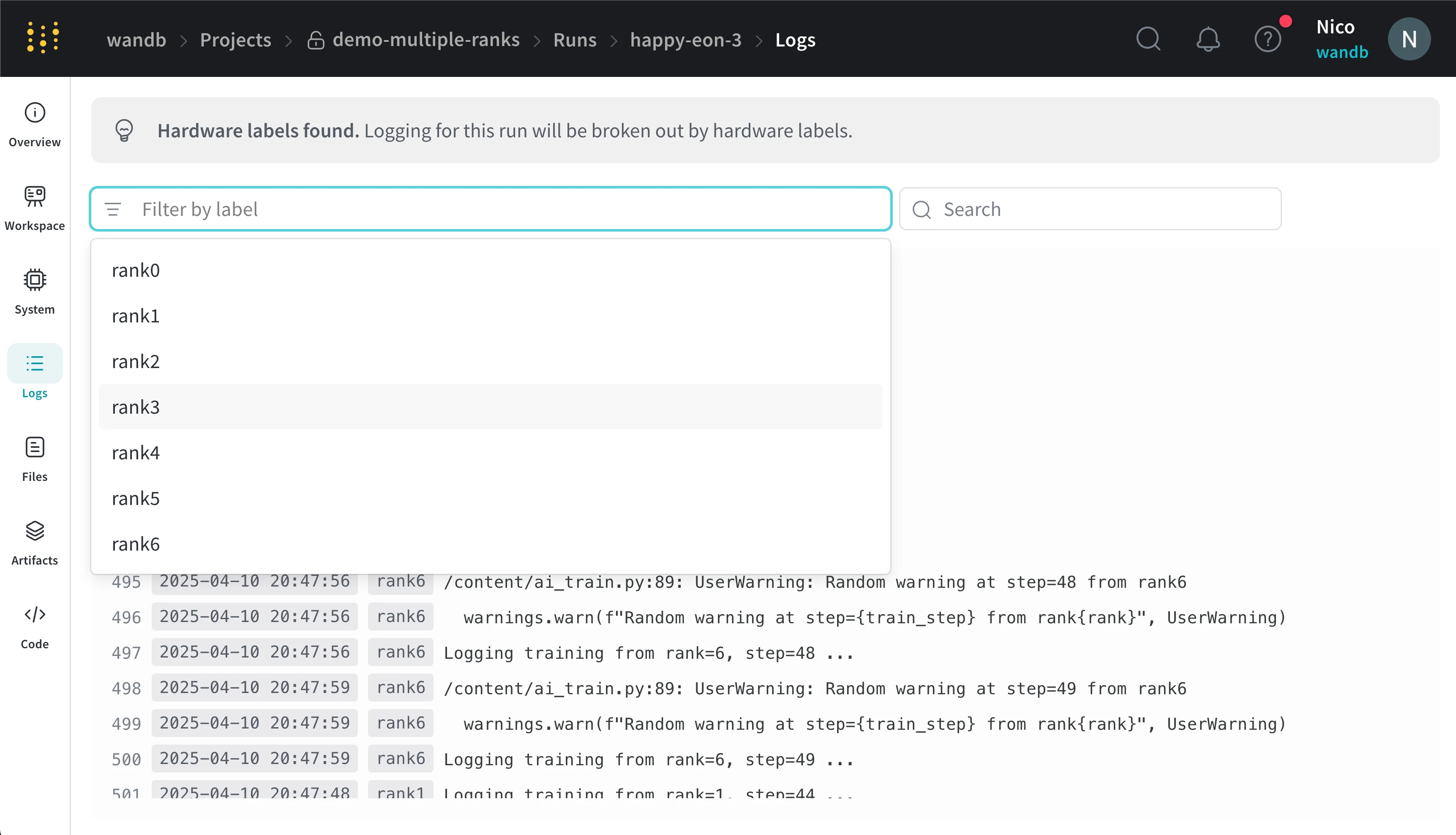
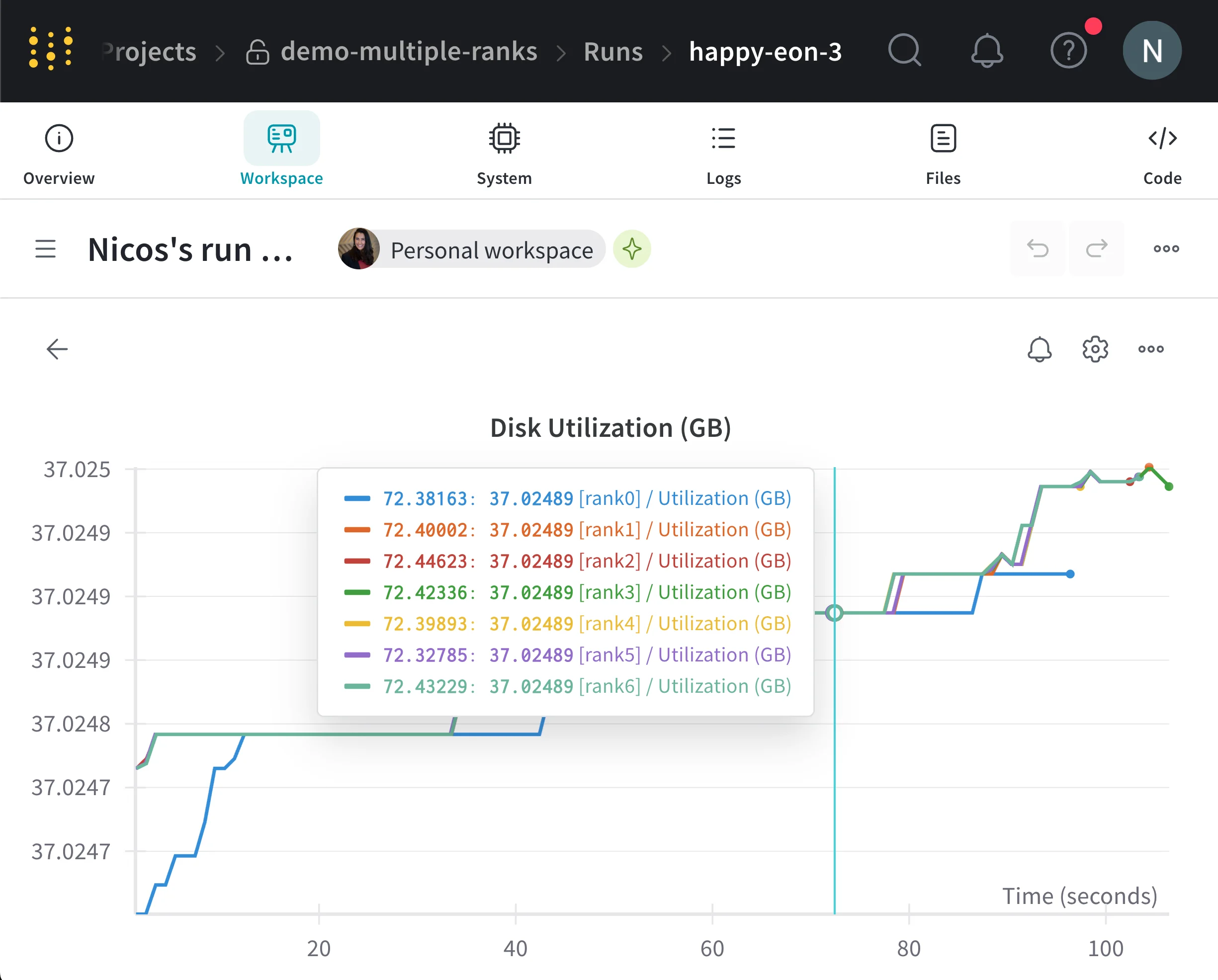
rank_0, rank_1, rank_2) that you specify in the x_label parameter.
Example use cases
The following code snippets demonstrate common scenarios for advanced distributed use cases. Use these patterns when your training setup involves spawned processes or when you need to share a single run across processes.Spawn process
Use thewandb.setup() method in your main function if you initiate a run in a spawned process:
Share a run
Pass a run object as an argument to share runs between processes:Troubleshooting
The following sections describe two common issues you might encounter when using W&B with distributed training, along with guidance about enabling W&B Service to improve reliability:- Becoming unresponsive at the beginning of training: A
wandbprocess can stop responding if thewandbmultiprocessing interferes with the multiprocessing from distributed training. - Becoming unresponsive at the end of training: A training job might stop responding if the
wandbprocess can’t determine when to exit. Call thewandb.Run.finish()API at the end of your Python script to signal W&B that the run finished. Thewandb.Run.finish()API finishes uploading data and causes W&B to exit.
wandb service command to improve the reliability of your distributed jobs. Both of the previous training issues commonly occur in versions of the W&B SDK where wandb service is unavailable.
Enable W&B Service
Depending on your version of the W&B SDK, you might already have W&B Service enabled by default.W&B SDK 0.13.0 and later
W&B Service is enabled by default for versions of the W&B SDK0.13.0 and later.
W&B SDK 0.12.5 and later
Modify your Python script to enable W&B Service for W&B SDK version0.12.5 and later. Use the wandb.require() method and pass the string "service" within your main function:
W&B SDK 0.12.4 and earlier
Set theWANDB_START_METHOD environment variable to "thread" to use multithreading instead if you use a W&B SDK version 0.12.4 or earlier.