This page shows you how to log rich media, including images, video, audio, 3D point clouds, molecules, histograms, HTML, and text, so you can explore your results and visually compare your runs, models, and datasets. Use these examples as a reference when you want to attach media objects to a W&B run.
For details, see the Data types reference.

Prerequisites

To log media objects with the W&B SDK, you may need to install additional dependencies that support the media types you plan to use. Install them by running the following command.
pip install wandb[media]

Images

Log images to track inputs, outputs, filter weights, and activations.
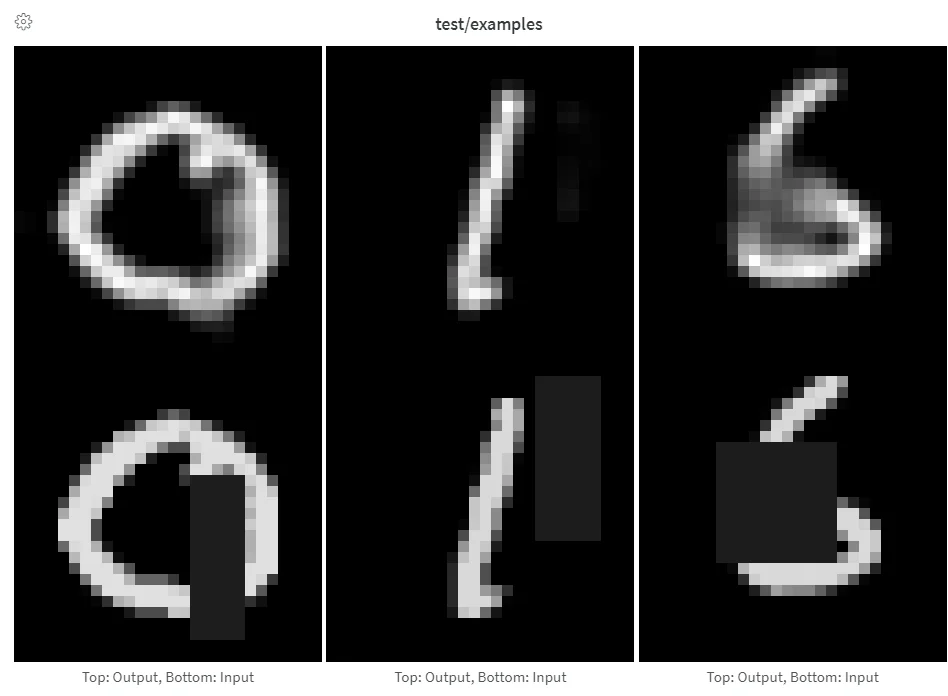
Autoencoder inputs and outputs
You can log images directly from NumPy arrays, as PIL images, or from the filesystem. Each time you log images from a step, they are available in the UI. Expand the image panel, then use the step slider to look at images from different steps. This helps you compare how a model’s output changes during training. Click a media panel to view an image in full-screen mode. In full-screen mode you can zoom and pan, including with keyboard shortcuts. To compare images or videos from different runs, steps, or indices in one view, use Compare mode in a media panel.
Log fewer than 50 images per step to prevent logging from becoming a bottleneck during training, and to prevent image loading from becoming a bottleneck when viewing results.
Provide arrays directly when constructing images manually, such as by using make_grid from torchvision.The SDK converts arrays to PNG using Pillow.
import wandb

with wandb.init(project="image-log-example") as run:

    images = wandb.Image(image_array, caption="Top: Output, Bottom: Input")

    run.log({"examples": images})
The SDK assumes the image is gray scale if the last dimension is 1, RGB if it’s 3, and RGBA if it’s 4. If the array contains floats, the SDK converts them to integers between 0 and 255. To normalize your images differently, specify the mode manually or supply a PIL.Image, as described in the “Log PIL images” tab of this panel.

Image overlays

You can attach overlays such as segmentation masks and bounding boxes to logged images so you can inspect predictions and ground-truth annotations directly in the W&B UI. The following tabs show how to log each overlay type.
Log semantic segmentation masks and interact with them in the W&B UI, such as by altering opacity and viewing changes over time.
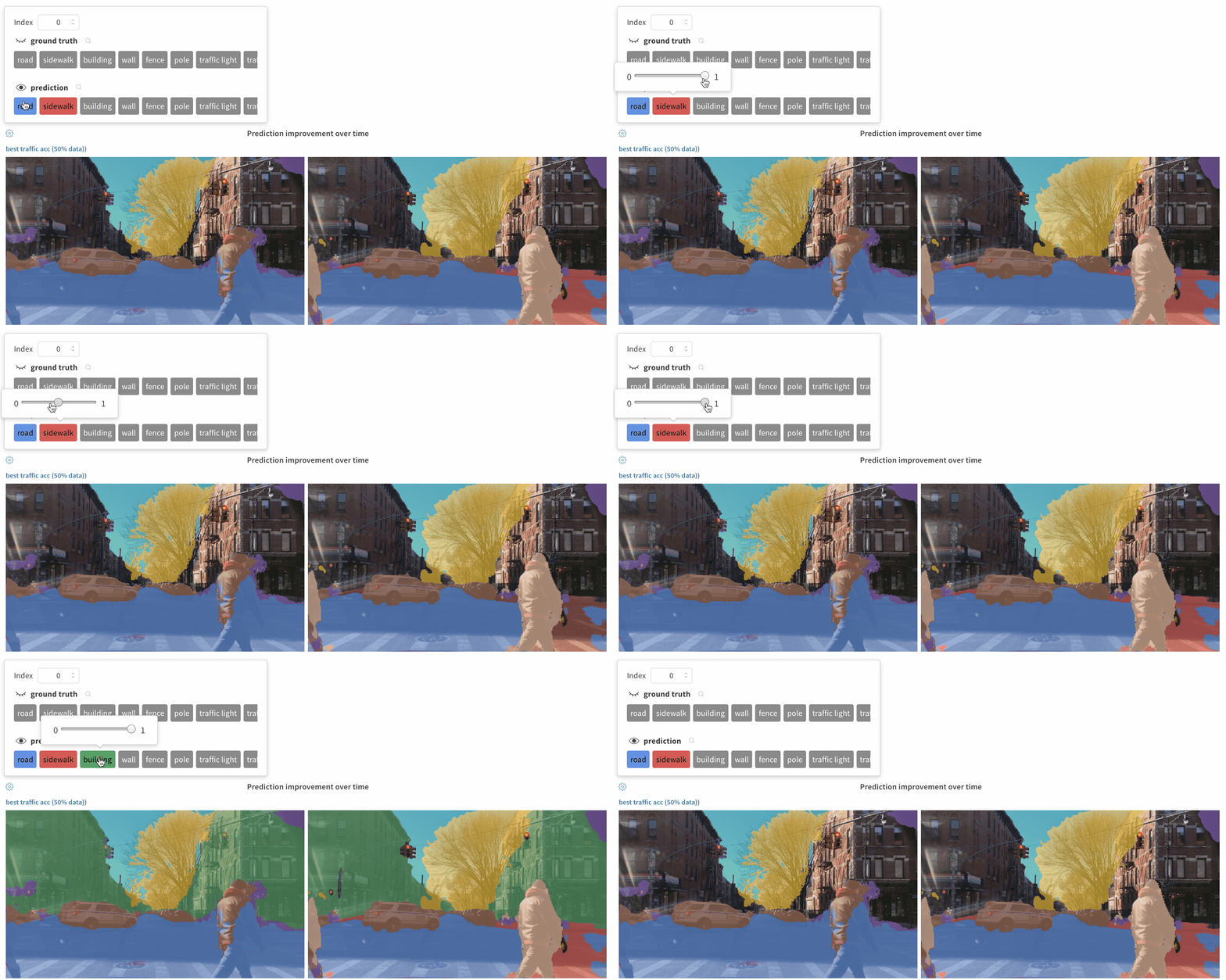
Interactive mask viewing
To log an overlay, provide a dictionary with the following keys and values to the masks keyword argument of wandb.Image:
  • one of two keys representing the image mask:
    • "mask_data": a 2D NumPy array containing an integer class label for each pixel
    • "path": (string) a path to a saved image mask file
  • "class_labels": (optional) a dictionary mapping the integer class labels in the image mask to their readable class names
To log multiple masks, log a mask dictionary with multiple keys, as in the following code snippet.See a live exampleSample code
mask_data = np.array([[1, 2, 2, ..., 2, 2, 1], ...])

class_labels = {1: "tree", 2: "car", 3: "road"}

mask_img = wandb.Image(
    image,
    masks={
        "predictions": {"mask_data": mask_data, "class_labels": class_labels},
        "ground_truth": {
            # ...
        },
        # ...
    },
)
Segmentation masks for a key are defined at each step (each call to run.log()).
  • If steps provide different values for the same mask key, only the most recent value for the key is applied to the image.
  • If steps provide different mask keys, all values for each key are shown, but only those defined in the step being viewed are applied to the image. Toggling the visibility of masks not defined in the step doesn’t change the image.
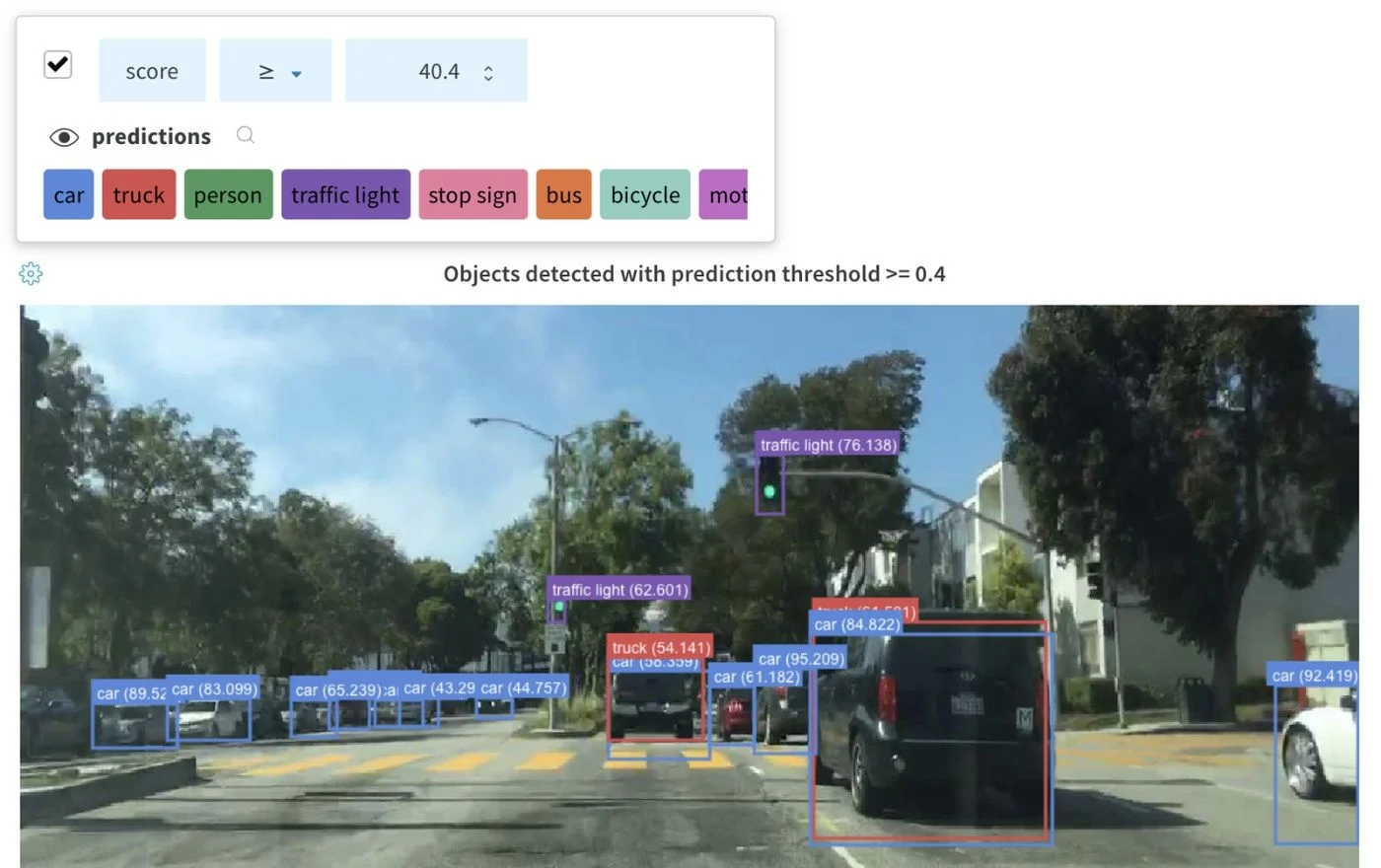
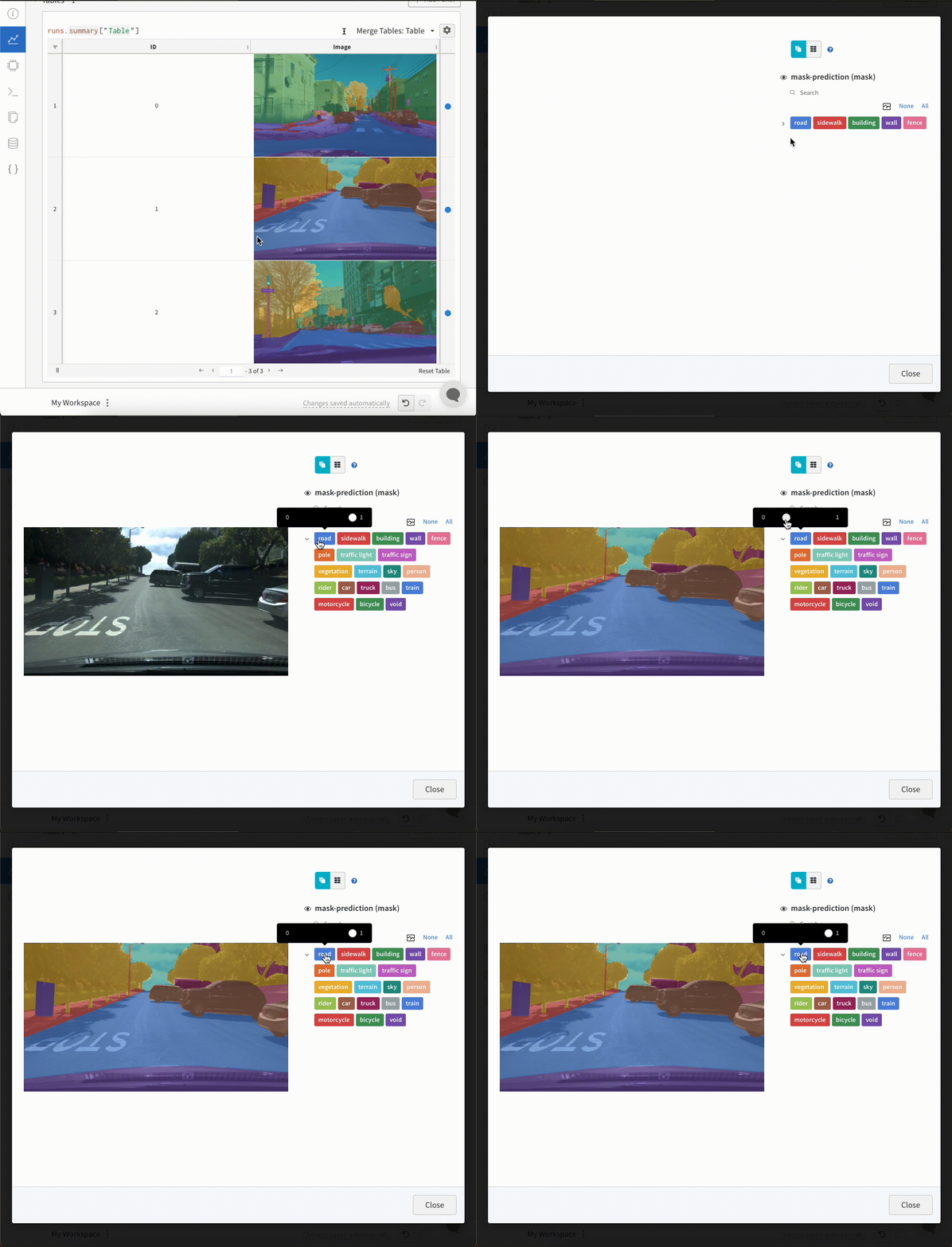
Image overlays in tables

To include image overlays inside a wandb.Table, construct a wandb.Image for each row and pass it as a table cell. The following tabs show how to do this for segmentation masks and bounding boxes.
Interactive Segmentation Masks in Tables
To log segmentation masks in tables, provide a wandb.Image object for each row in the table.The following code snippet shows an example.
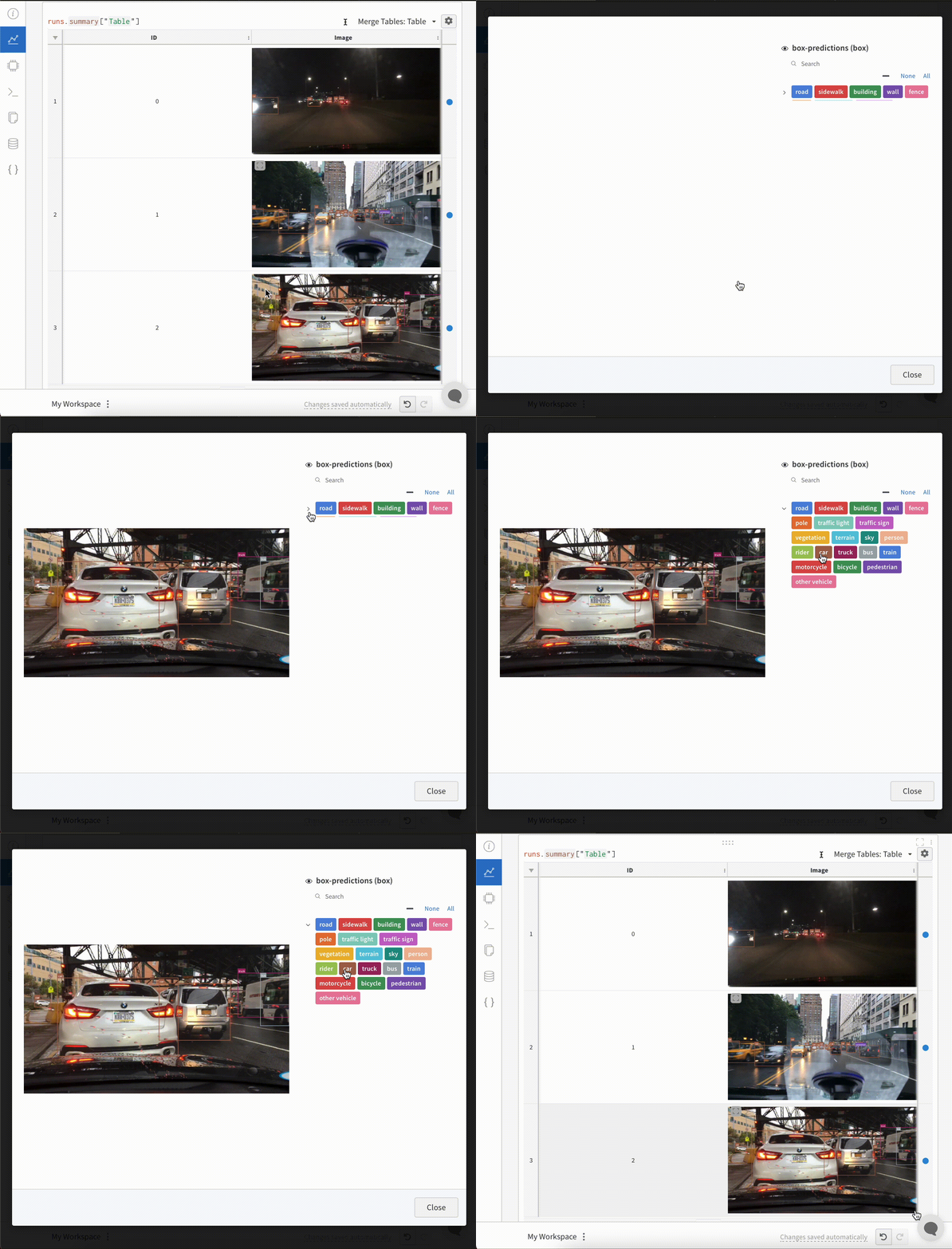
table = wandb.Table(columns=["ID", "Image"])

for id, img, label in zip(ids, images, labels):
    mask_img = wandb.Image(
        img,
        masks={
            "prediction": {"mask_data": label, "class_labels": class_labels}
            # ...
        },
    )

    table.add_data(id, mask_img)

with wandb.init(project="my_project") as run:
    run.log({"Table": table})

Histograms

Log histograms to track the distribution of values, such as gradients or activations, across training steps. The following tabs show basic and flexible approaches.
If you provide a sequence of numbers, such as a list, array, or tensor, as the first argument, the SDK constructs the histogram automatically by calling np.histogram(). The SDK flattens all arrays/tensors. Use the optional num_bins keyword argument to override the default of 64 bins. The maximum number of bins supported is 512.In the UI, histograms are plotted with the training step on the x-axis, the metric value on the y-axis, and the count represented by color, which eases comparison of histograms logged throughout training. See the “Histograms in Summary” tab of this panel for details on logging one-off histograms.
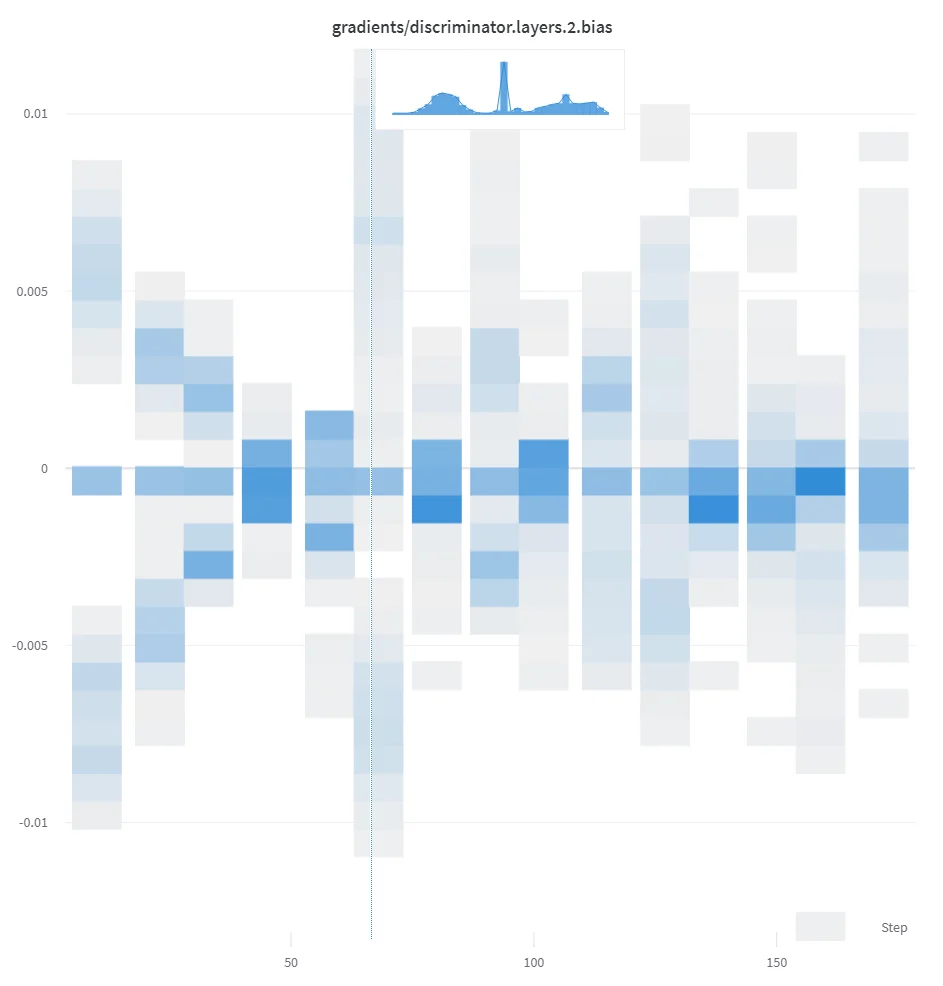
run.log({"gradients": wandb.Histogram(grads)})
GAN discriminator gradients
If histograms are in your summary, they appear on the Overview tab of the run page. If they are in your history, the UI plots a heatmap of bins over time on the Charts tab.

3D visualizations

Log 3D point clouds and Lidar scenes with bounding boxes. Pass in a NumPy array containing coordinates and colors for the points to render.
point_cloud = np.array([[0, 0, 0, COLOR]])

run.log({"point_cloud": wandb.Object3D(point_cloud)})
The W&B UI truncates the data at 300,000 points.

NumPy array formats

The SDK supports three different formats of NumPy arrays for flexible color schemes.
  • [[x, y, z], ...] nx3
  • [[x, y, z, c], ...] nx4 | c is a category in the range [1, 14] (Useful for segmentation)
  • [[x, y, z, r, g, b], ...] nx6 | r,g,b are values in the range [0,255]for red, green, and blue color channels.

Python object

With this schema, you can define a Python object and pass it to the from_point_cloud method.
  • points is a NumPy array containing coordinates and colors for the points to render using the same formats as the simple point cloud renderer.
  • boxes is a NumPy array of Python dictionaries with three attributes:
    • corners - a list of eight corners
    • label - a string representing the label to render on the box (optional)
    • color - RGB values representing the color of the box
    • score - a numeric value that displays on the bounding box and that you can use to filter the bounding boxes shown (for example, to only show bounding boxes where score > 0.75). (optional)
  • type is a string representing the scene type to render. The only supported value is lidar/beta.
point_list = [
    [
        2566.571924017235, # x
        746.7817289698219, # y
        -15.269245470863748,# z
        76.5, # red
        127.5, # green
        89.46617199365393 # blue
    ],
    [ 2566.592983606823, 746.6791987335685, -15.275803826279521, 76.5, 127.5, 89.45471117247024 ],
    [ 2566.616361739416, 746.4903185513501, -15.28628929674075, 76.5, 127.5, 89.41336375503832 ],
    [ 2561.706014951675, 744.5349468458361, -14.877496818222781, 76.5, 127.5, 82.21868245418283 ],
    [ 2561.5281847916694, 744.2546118233013, -14.867862032341005, 76.5, 127.5, 81.87824684536432 ],
    [ 2561.3693562897465, 744.1804761656741, -14.854129178142523, 76.5, 127.5, 81.64137897587152 ],
    [ 2561.6093071504515, 744.0287526628543, -14.882135189841177, 76.5, 127.5, 81.89871499537098 ],
    # ... and so on
]

run.log({"my_first_point_cloud": wandb.Object3D.from_point_cloud(
     points = point_list,
     boxes = [{
         "corners": [
                [ 2601.2765123137915, 767.5669506323393, -17.816764802288663 ],
                [ 2599.7259021588347, 769.0082337923552, -17.816764802288663 ],
                [ 2599.7259021588347, 769.0082337923552, -19.66876480228866 ],
                [ 2601.2765123137915, 767.5669506323393, -19.66876480228866 ],
                [ 2604.8684867834395, 771.4313904894723, -17.816764802288663 ],
                [ 2603.3178766284827, 772.8726736494882, -17.816764802288663 ],
                [ 2603.3178766284827, 772.8726736494882, -19.66876480228866 ],
                [ 2604.8684867834395, 771.4313904894723, -19.66876480228866 ]
        ],
         "color": [0, 0, 255], # color in RGB of the bounding box
         "label": "car", # string displayed on the bounding box
         "score": 0.6 # numeric displayed on the bounding box
     }],
     vectors = [
        {"start": [0, 0, 0], "end": [0.1, 0.2, 0.5], "color": [255, 0, 0]}, # color is optional
     ],
     point_cloud_type = "lidar/beta",
)})
When viewing a point cloud, you can hold control and use the mouse to move around inside the space.

Point cloud files

Use the from_file method to load a JSON file full of point cloud data.
run.log({"my_cloud_from_file": wandb.Object3D.from_file(
     "./my_point_cloud.pts.json"
)})
The following shows an example of how to format the point cloud data.
{
    "boxes": [
        {
            "color": [
                0,
                255,
                0
            ],
            "score": 0.35,
            "label": "My label",
            "corners": [
                [
                    2589.695869075582,
                    760.7400443552185,
                    -18.044831294622487
                ],
                [
                    2590.719039645323,
                    762.3871153874499,
                    -18.044831294622487
                ],
                [
                    2590.719039645323,
                    762.3871153874499,
                    -19.54083129462249
                ],
                [
                    2589.695869075582,
                    760.7400443552185,
                    -19.54083129462249
                ],
                [
                    2594.9666662674313,
                    757.4657929961453,
                    -18.044831294622487
                ],
                [
                    2595.9898368371723,
                    759.1128640283766,
                    -18.044831294622487
                ],
                [
                    2595.9898368371723,
                    759.1128640283766,
                    -19.54083129462249
                ],
                [
                    2594.9666662674313,
                    757.4657929961453,
                    -19.54083129462249
                ]
            ]
        }
    ],
    "points": [
        [
            2566.571924017235,
            746.7817289698219,
            -15.269245470863748,
            76.5,
            127.5,
            89.46617199365393
        ],
        [
            2566.592983606823,
            746.6791987335685,
            -15.275803826279521,
            76.5,
            127.5,
            89.45471117247024
        ],
        [
            2566.616361739416,
            746.4903185513501,
            -15.28628929674075,
            76.5,
            127.5,
            89.41336375503832
        ]
    ],
    "type": "lidar/beta"
}

NumPy arrays

With the same array formats, you can use numpy arrays directly with the from_numpy method to define a point cloud.
run.log({"my_cloud_from_numpy_xyz": wandb.Object3D.from_numpy(
     np.array(  
        [
            [0.4, 1, 1.3], # x, y, z
            [1, 1, 1], 
            [1.2, 1, 1.2]
        ]
    )
)})
run.log({"my_cloud_from_numpy_cat": wandb.Object3D.from_numpy(
     np.array(  
        [
            [0.4, 1, 1.3, 1], # x, y, z, category 
            [1, 1, 1, 1], 
            [1.2, 1, 1.2, 12], 
            [1.2, 1, 1.3, 12], 
            [1.2, 1, 1.4, 12], 
            [1.2, 1, 1.5, 12], 
            [1.2, 1, 1.6, 11], 
            [1.2, 1, 1.7, 11], 
        ]
    )
)})
run.log({"my_cloud_from_numpy_rgb": wandb.Object3D.from_numpy(
     np.array(  
        [
            [0.4, 1, 1.3, 255, 0, 0], # x, y, z, r, g, b 
            [1, 1, 1, 0, 255, 0], 
            [1.2, 1, 1.3, 0, 255, 255],
            [1.2, 1, 1.4, 0, 255, 255],
            [1.2, 1, 1.5, 0, 0, 255],
            [1.2, 1, 1.1, 0, 0, 255],
            [1.2, 1, 0.9, 0, 0, 255],
        ]
    )
)})
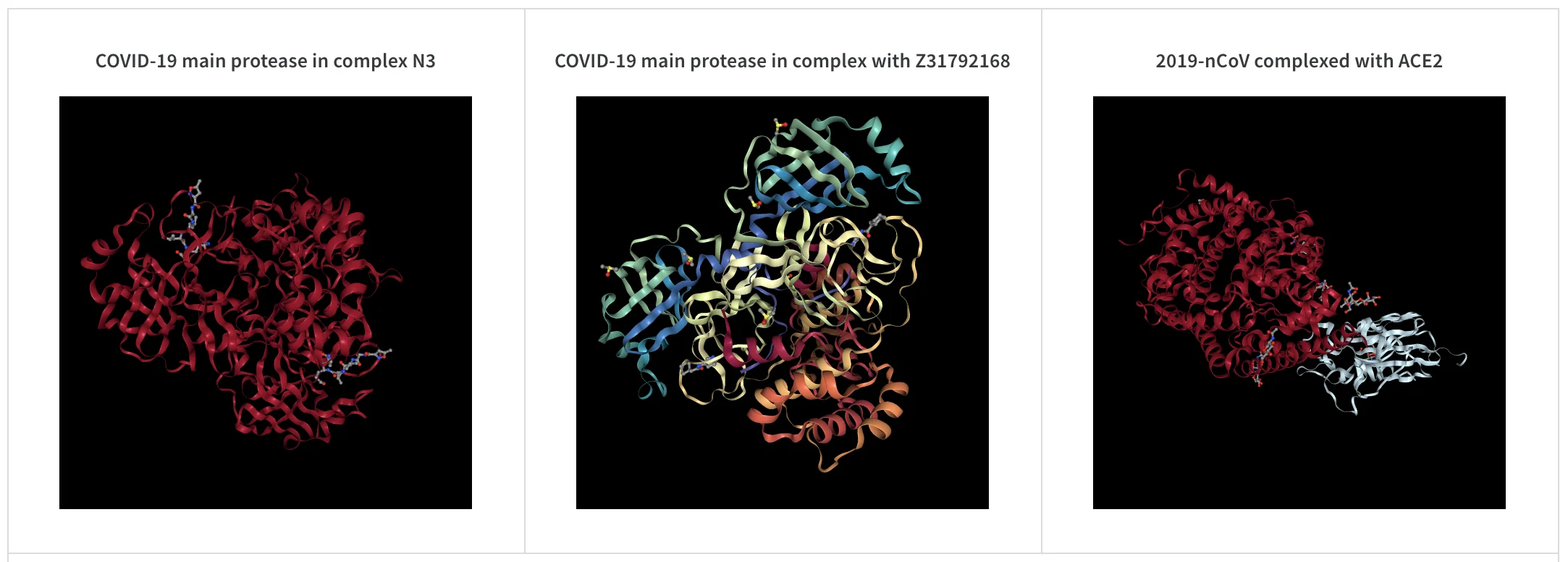
You can also log molecular data, such as proteins, by passing the path to a molecular data file to wandb.Molecule:
run.log({"protein": wandb.Molecule("6lu7.pdb")})
Log molecular data in any of 10 file types: pdb, pqr, mmcif, mcif, cif, sdf, sd, gro, mol2, or mmtf. W&B also supports logging molecular data from SMILES strings, rdkit mol files, and rdkit.Chem.rdchem.Mol objects.
resveratrol = rdkit.Chem.MolFromSmiles("Oc1ccc(cc1)C=Cc1cc(O)cc(c1)O")

run.log(
    {
        "resveratrol": wandb.Molecule.from_rdkit(resveratrol),
        "green fluorescent protein": wandb.Molecule.from_rdkit("2b3p.mol"),
        "acetaminophen": wandb.Molecule.from_smiles("CC(=O)Nc1ccc(O)cc1"),
    }
)
When your run finishes, you can interact with 3D visualizations of your molecules in the UI. See a live example using AlphaFold
Molecule structure

PNG image

wandb.Image converts numpy arrays or instances of PILImage to PNGs by default.
run.log({"example": wandb.Image(...)})
# Or multiple images
run.log({"example": [wandb.Image(...) for img in images]})

Video

Log videos with the wandb.Video data type:
run.log({"example": wandb.Video("myvideo.mp4")})
You can view videos in the media browser. Go to your project workspace, run workspace, or report and click Add visualization to add a rich media panel.

2D view of a molecule

You can log a 2D view of a molecule using the wandb.Image data type and rdkit:
molecule = rdkit.Chem.MolFromSmiles("CC(=O)O")
rdkit.Chem.AllChem.Compute2DCoords(molecule)
rdkit.Chem.AllChem.GenerateDepictionMatching2DStructure(molecule, molecule)
pil_image = rdkit.Chem.Draw.MolToImage(molecule, size=(300, 300))

run.log({"acetic_acid": wandb.Image(pil_image)})

Other media

W&B also supports logging other media types, including audio, video, text tables, and HTML. The following sections show how to log each type.

Audio

run.log({"whale songs": wandb.Audio(np_array, caption="OooOoo", sample_rate=32)})
A maximum of 100 audio clips can be logged per step. For more usage information, see audio-file.

Video

run.log({"video": wandb.Video(numpy_array_or_path_to_video, fps=4, format="gif")})
If you supply a NumPy array, the SDK assumes the dimensions are, in order: time, channels, width, and height. By default, the SDK creates a 4 fps GIF image (ffmpeg and the moviepy Python library are required when you pass NumPy objects). Supported formats are "gif", "mp4", "webm", and "ogg". If you pass a string to wandb.Video, the SDK asserts the file exists and is a supported format before uploading to W&B. If you pass a BytesIO object, the SDK creates a temporary file with the specified format as the extension. Your videos appear in the Media section of the W&B run and project pages. For more usage information, see video-file.

Text

Use wandb.Table to log text in tables that appear in the UI. By default, the column headers are ["Input", "Output", "Expected"]. To ensure optimal UI performance, the default maximum number of rows is set to 10,000. However, you can explicitly override the maximum with wandb.Table.MAX_ROWS = 200000.
with wandb.init(project="my_project") as run:
    columns = ["Text", "Predicted Sentiment", "True Sentiment"]
    # Method 1
    data = [["I love my phone", "1", "1"], ["My phone sucks", "0", "-1"]]
    table = wandb.Table(data=data, columns=columns)
    run.log({"examples": table})

    # Method 2
    table = wandb.Table(columns=columns)
    table.add_data("I love my phone", "1", "1")
    table.add_data("My phone sucks", "0", "-1")
    run.log({"examples": table})
You can also pass a pandas DataFrame object.
table = wandb.Table(dataframe=my_dataframe)
For more usage information, see string.

HTML

run.log({"custom_file": wandb.Html(open("some.html"))})
run.log({"custom_string": wandb.Html('<a href="https://mysite">Link</a>')})
Log custom HTML at any key to expose an HTML panel on the run page. By default, the SDK injects default styles. To turn off default styles, pass inject=False.
run.log({"custom_file": wandb.Html(open("some.html"), inject=False)})
For more usage information, see html-file.