

Each project has a visibility setting that determines who can access it. For more information about who can access a project, see Project visibility.
- Overview: Snapshot of your project.
- Workspace: Personal visualization sandbox.
- Runs: Table that lists all the runs in your project.
- Automations: Automations configured in your project.
- Sweeps: Automated exploration and optimization.
- Reports: Saved snapshots of notes, runs, and graphs.
- Artifacts: All runs and the artifacts associated with each run.
Overview tab
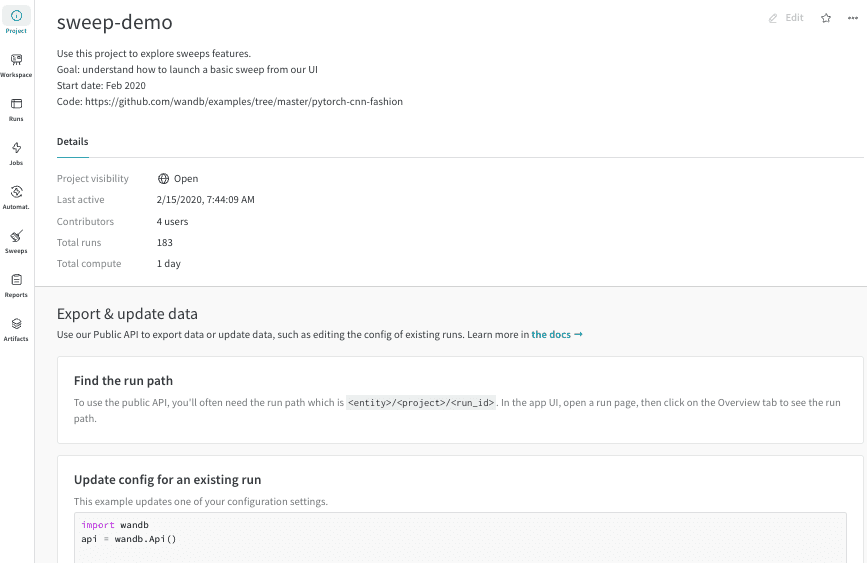
The Overview tab provides a snapshot of the project and gives you access to project-level settings. W&B creates a project for you when you initialize a run with the name you provide for the project field. From the Overview tab, you can find the project name and manage the project:- To change the project’s name, description, or team, click Edit in the upper right corner.
- To undelete recently deleted runs, click the action () menu in the upper right corner, then click Undelete recently deleted runs.
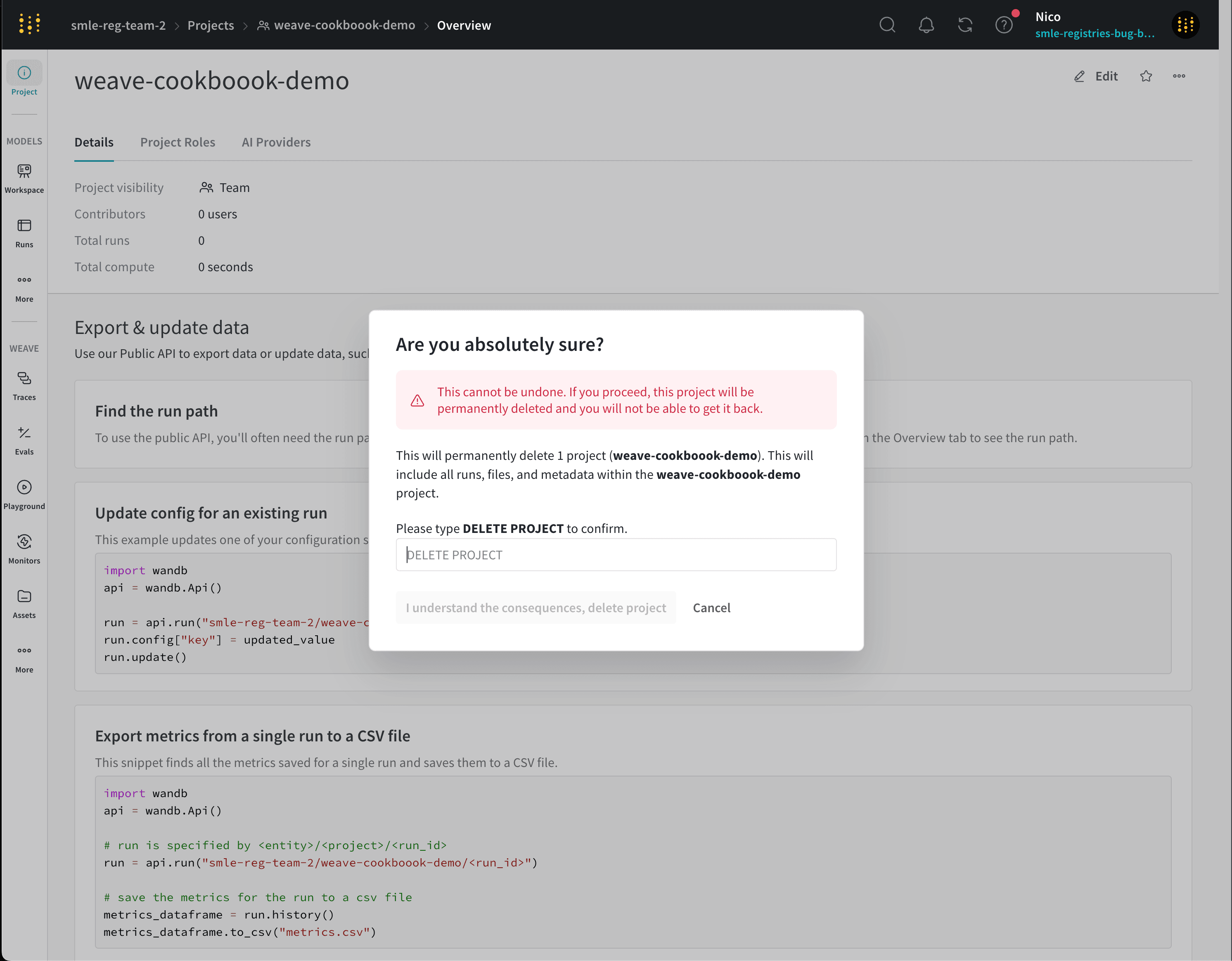
- To delete the project, click the action () menu in the upper right corner, then click Delete project. Read the confirmation dialog and follow the instructions. Deleting a project is not reversible.
Details
Details about the project include:- Project visibility: The visibility setting that determines who can access the project. For more information, see Project visibility.
- Last active: Timestamp of the last time data was logged to this project.
- Contributors: The number of users who contribute to this project.
- Total runs: The total number of runs in this project.
- Total compute: The sum of all the run times in your project.
- In the W&B App, from any page in the project, click Overview in the left navigation.
- At the top right, click Edit.
-
Choose a new value for Project visibility:
- Team (default): Only your team can view and edit the project.
- Restricted: Only invited members can access the project, and public access is turned off.
- Open: Anyone can submit runs or create reports, but only your team can edit it. Appropriate only for classroom settings, public benchmark competitions, or other non-durable contexts.
-
Public: Anyone can view the project, but only your team can edit it.
If your W&B admins have turned off Public visibility, you cannot choose it. Instead, you can share a view-only W&B Report, or contact your W&B organization’s admins for assistance.
- Click Save.
Project roles
The Project roles tab is visible only to the project owner and those with the Admin role. List and search for users with access to the project or change a member’s role.Workspace tab
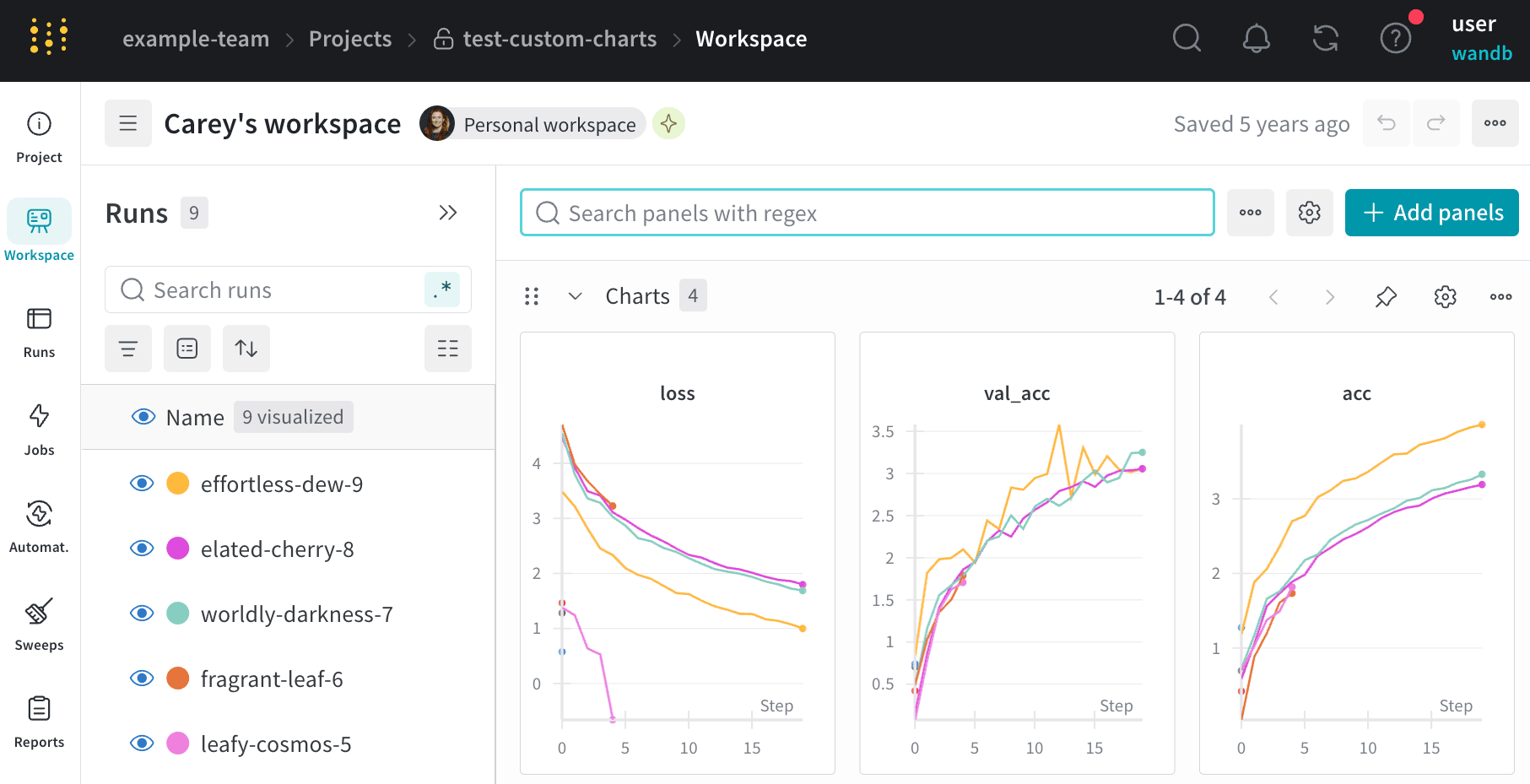
A project’s workspace gives you a personal sandbox to compare experiments. Use the workspace to organize models that can be compared, working on the same problem with different architectures, hyperparameters, datasets, preprocessing, and so on. Runs sidebar: List of all the runs in your project.- Action () menu: Hover over a row in the sidebar to see the menu appear on the left side. Use this menu to rename a run, delete a run, or stop an active run.
- Visibility icon: Click the eye to turn on and off runs on graphs.
- Color: Change the run color to another preset or a custom color.
- Search: Search runs by name. This also filters visible runs in the plots.
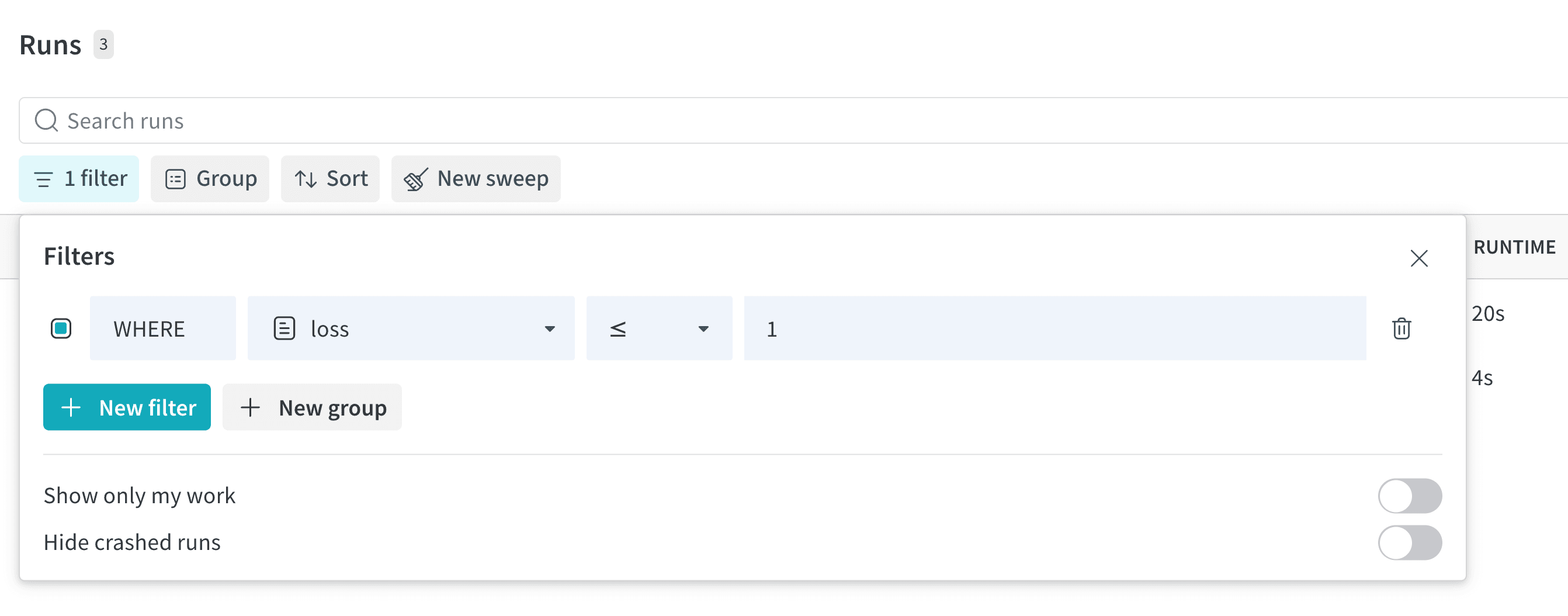
- Filter: Use the sidebar filter to narrow down the set of runs visible.
- Group: Select a config column to dynamically group your runs, for example by architecture. Grouping makes plots show up with a line along the mean value, and a shaded region for the variance of points on the graph.
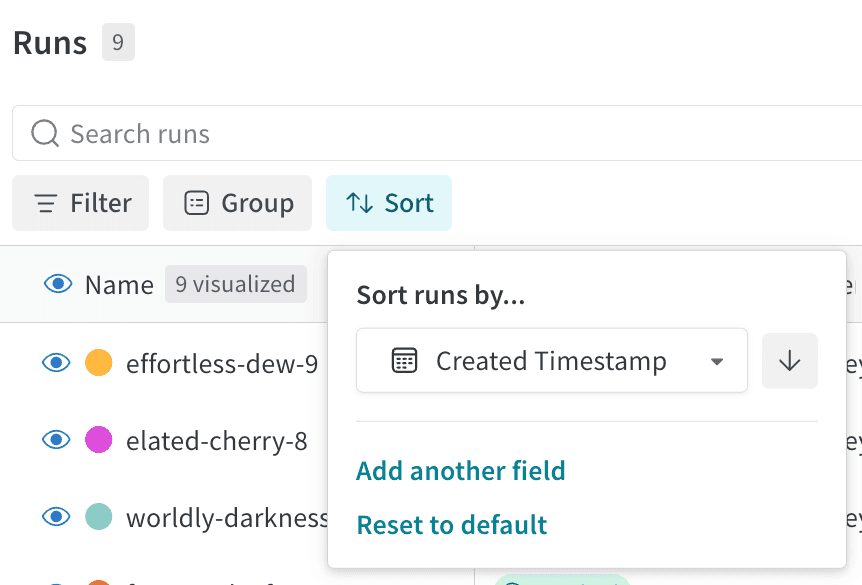
- Sort: Pick a value to sort your runs by, for example runs with the lowest loss or highest accuracy. Sorting affects which runs show up on the graphs.
- Expand button: Expand the sidebar into the full table.
- Minimize: Press Cmd+. (macOS) or Ctrl+. (Windows/Linux) to collapse or restore the Runs selector. See Keyboard shortcuts for details.
- Run count: The number in parentheses at the top is the total number of runs in the project. The number (N visualized) is the number of runs that have the eye turned on and are available to be visualized in each plot. In the following example, the graphs are only showing the first 10 of 183 runs. Edit a graph to increase the max number of runs visible.
Add a section of panels
Click the section dropdown menu and click Add section to create a new section for panels. You can rename sections, drag them to reorganize them, and expand and collapse sections. Each section has options in the upper right corner:- Add section: Add a section above or below from the dropdown menu, or click the button at the bottom of the page to add a new section.
- Rename section: Change the title for your section.
- Export section to report: Save this section of panels to a new report.
- Delete section: Remove the whole section and all the charts. To undo this, click the undo button at the bottom of the page in the workspace bar.
- Add panel: Click the plus button to add a panel to the section.
Move panels between sections
Drag and drop panels to reorder and organize into sections. You can also click the Move button in the upper right corner of a panel to select a section to move the panel to.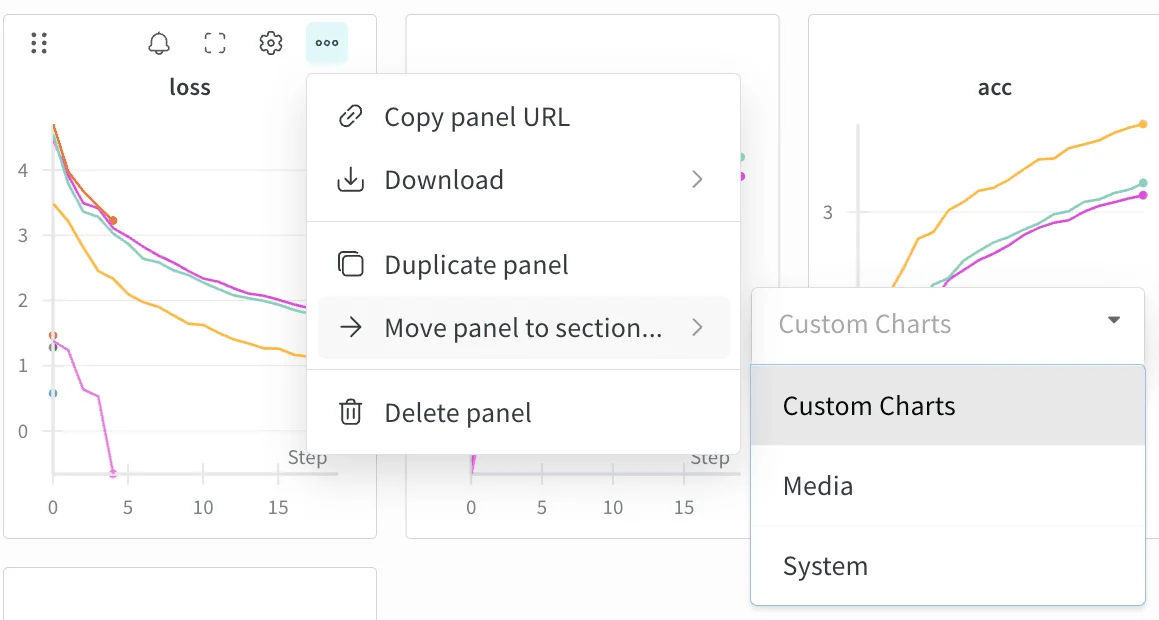
Resize panels
All panels maintain the same size, and there are pages of panels. Resize the section by clicking and dragging the lower right corner of the section, which displays a corner icon when you hover.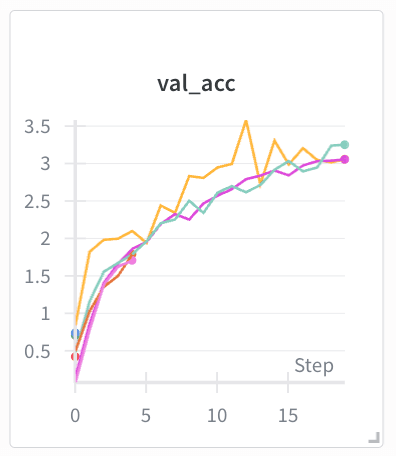
Search for metrics
Use the search box in the workspace to filter down the panels. This search matches the panel titles, which are by default the name of the metrics visualized.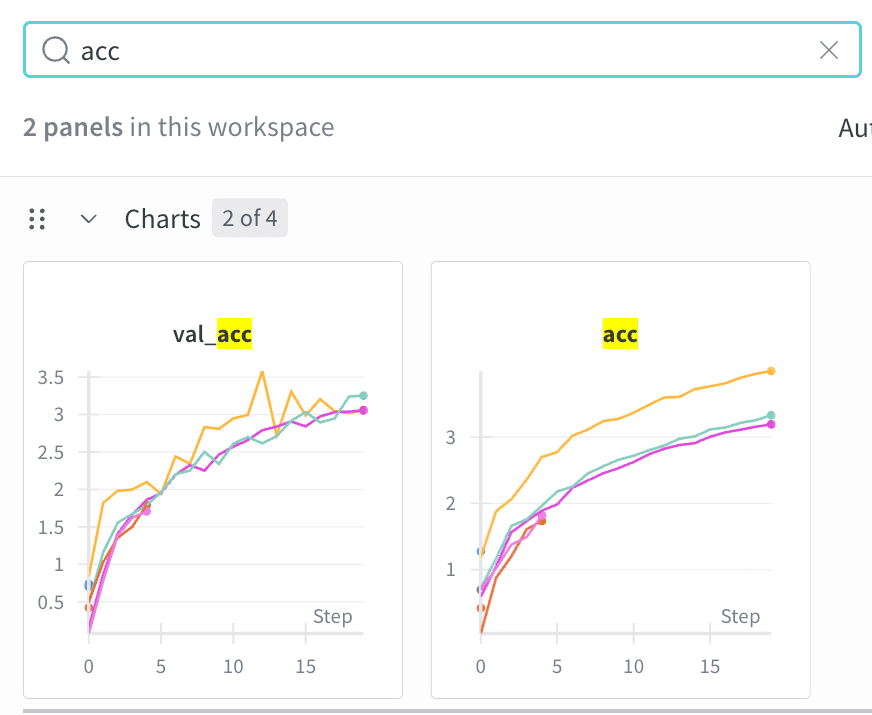
Runs tab
Use the Runs tab to filter, group, and sort your runs so you can find and compare the runs you care about.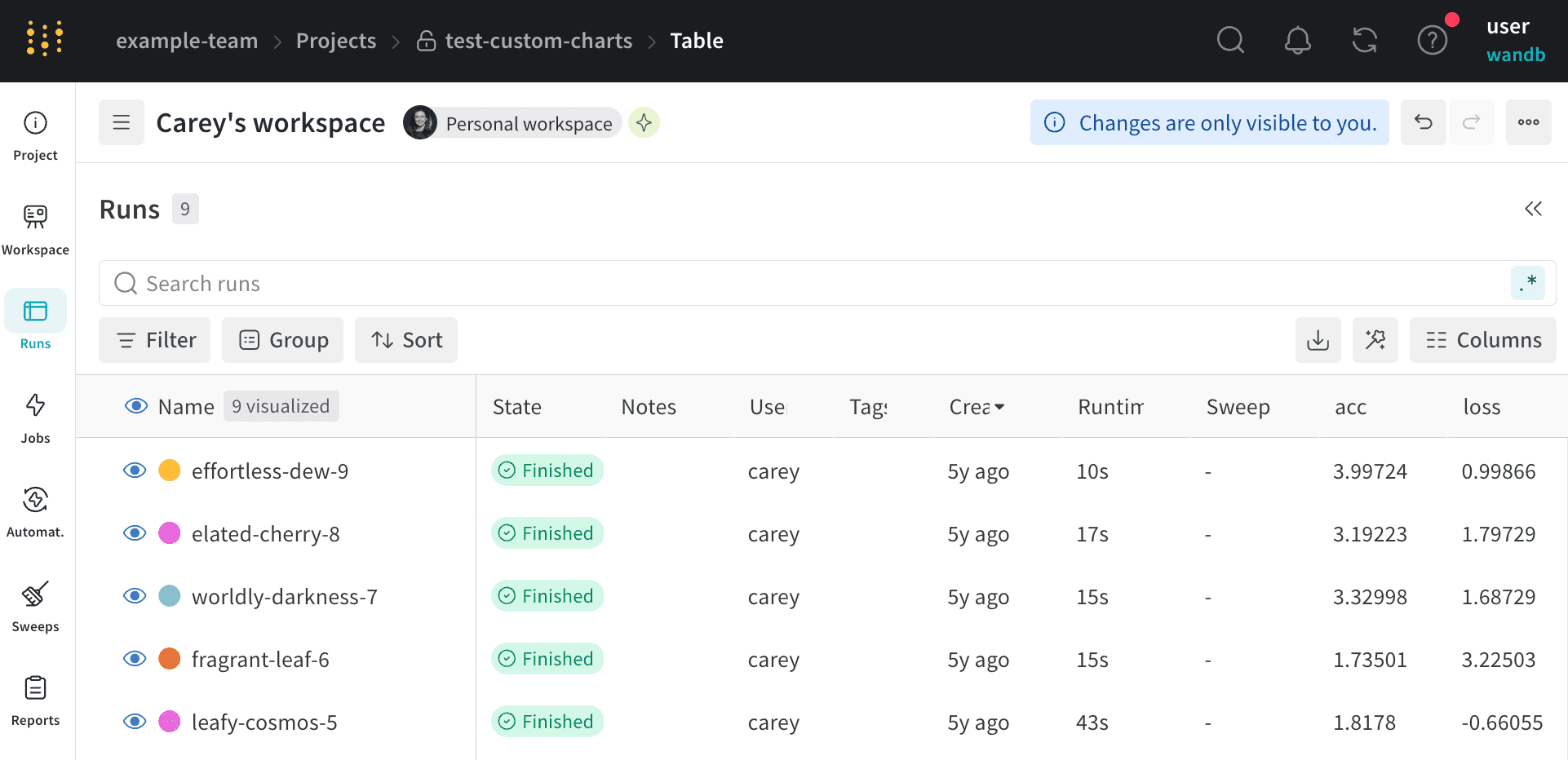
- Customize columns
- Sort
- Filter
- Group
The Runs tab shows details about runs in the project. It shows many columns by default.You can customize the columns as follows:
When you customize the Runs tab, the customization is also reflected in the Runs selector of the Workspace tab.
- To view all visible columns, scroll the page horizontally.
- To change the order of the columns, drag a column to the left or right.
- To pin a column, hover over the column name, click the action () menu that appears, then click Pin column. Pinned columns appear near the left of the page, after the Name column. To unpin a pinned column, choose Unpin column.
- To hide a column, hover over the column name, click the action () menu that appears, then click Hide column. To view all columns that are hidden, click Columns.
- To show, hide, pin, and unpin multiple columns at once, click Columns.
- Click the name of a hidden column to unhide it.
- Click the name of a visible column to hide it.
- Click the pin icon next to a visible column to pin it.
Automations tab
Automate downstream actions for versioning artifacts. To create an automation, define trigger events and resulting actions. Actions include executing a webhook or launching a W&B job. For more information, see Automations.Sweeps tab
Start a new sweep from your project.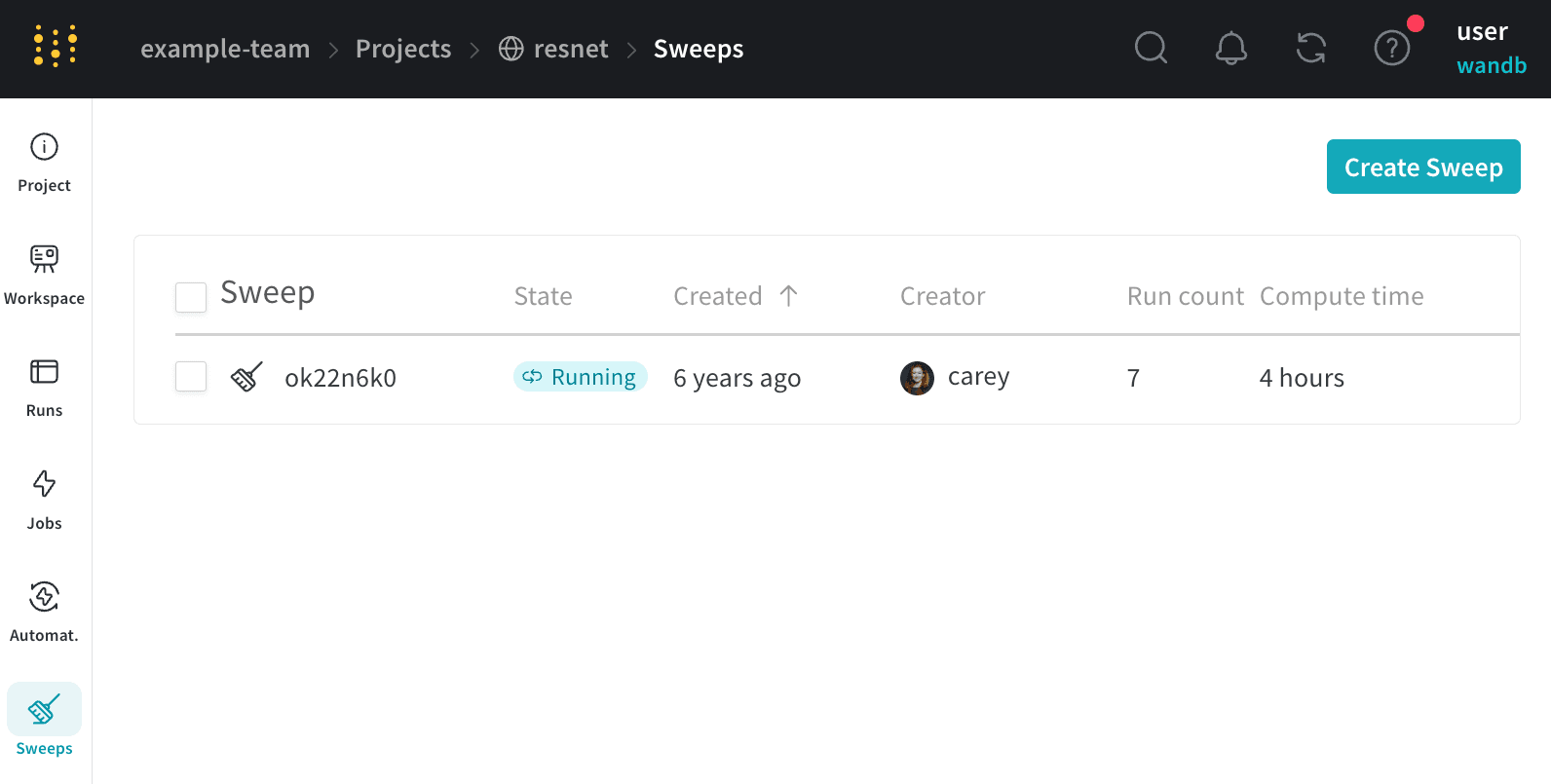
Reports tab
The Reports tab lets you see all the snapshots of results in one place, and share findings with your team.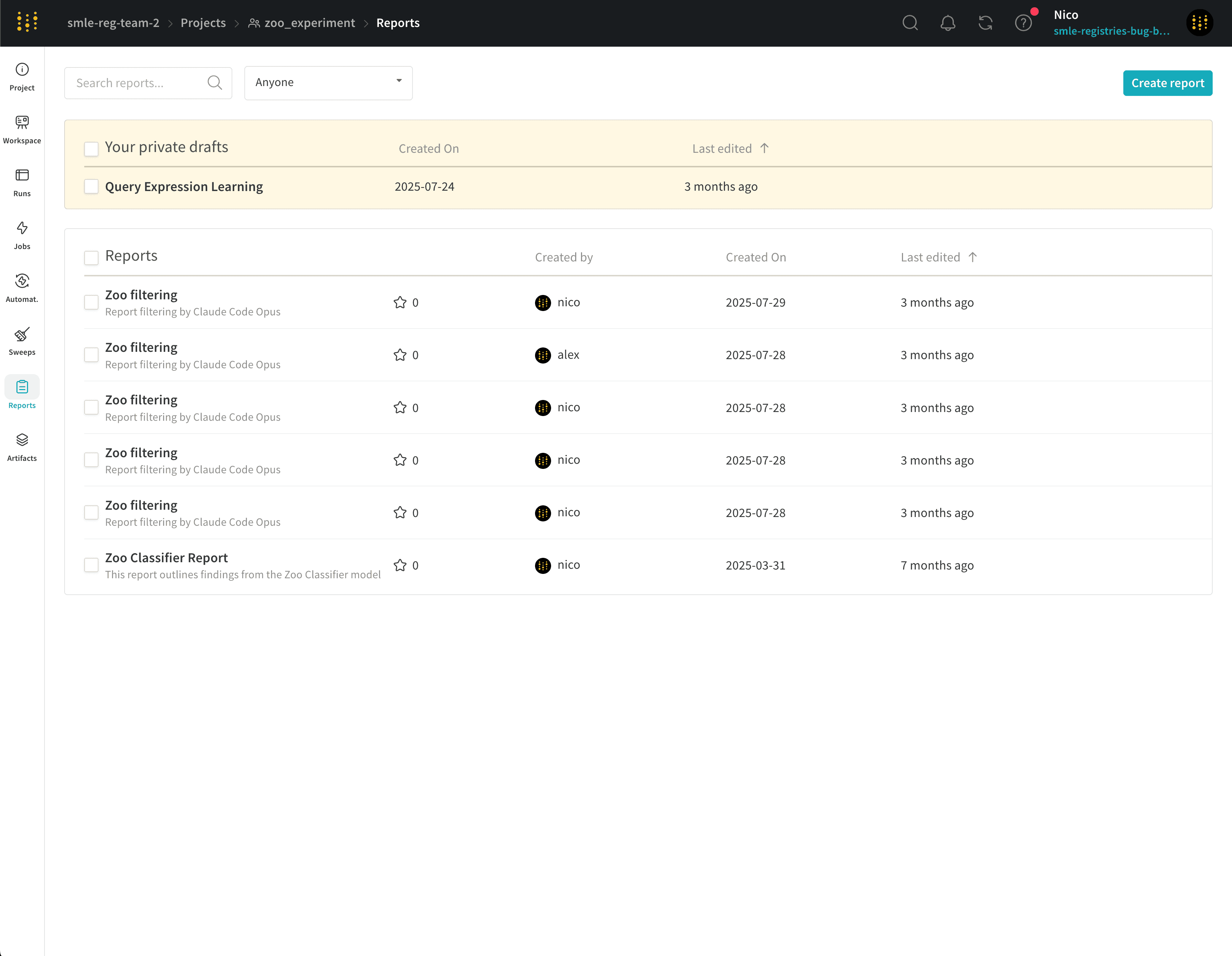
Artifacts tab
View all artifacts associated with a project, from training datasets and fine-tuned models to tables of metrics and media. The following sections describe each panel and tab available for an artifact.Metadata panel
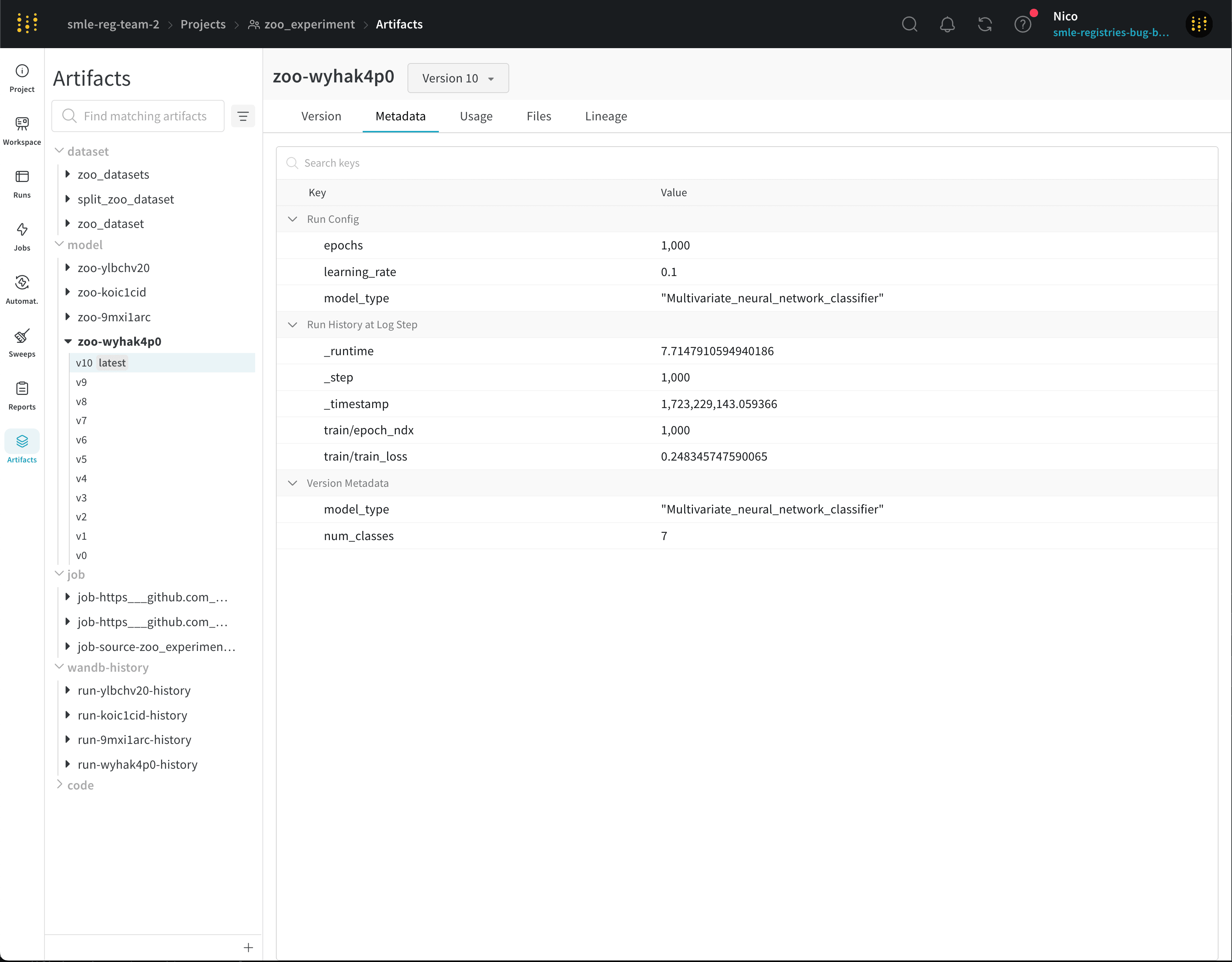
- Select the Artifacts tab from the project sidebar.
- Select an artifact from the list to view the details page for the latest version of that artifact.
- Select the Metadata tab to view the metadata associated with that artifact.
Usage panel
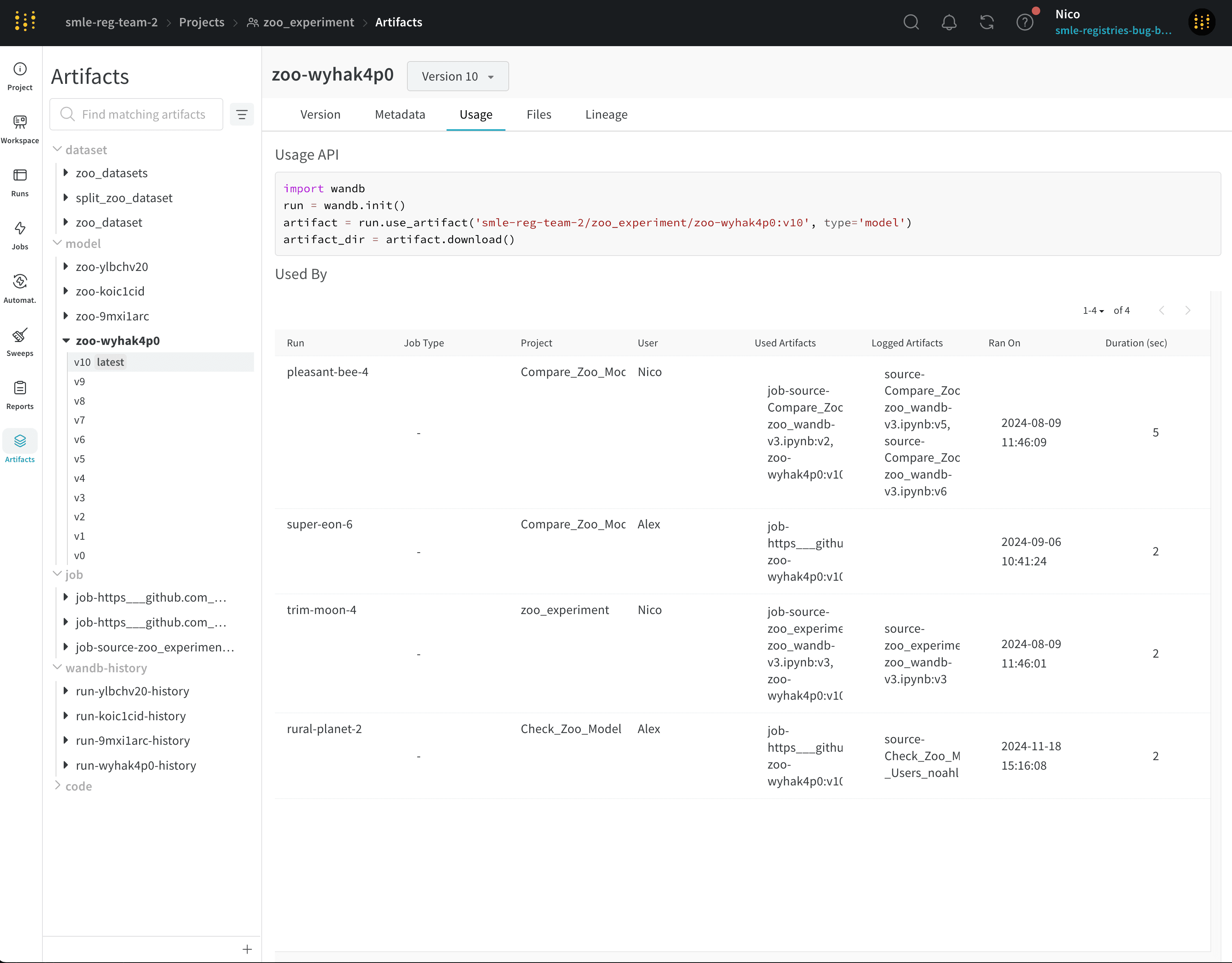
- Select the Artifacts tab from the project sidebar.
- Select an artifact from the list to view the details page for the latest version of that artifact.
- Select the Usage tab to view the code snippet and related runs.
Files panel
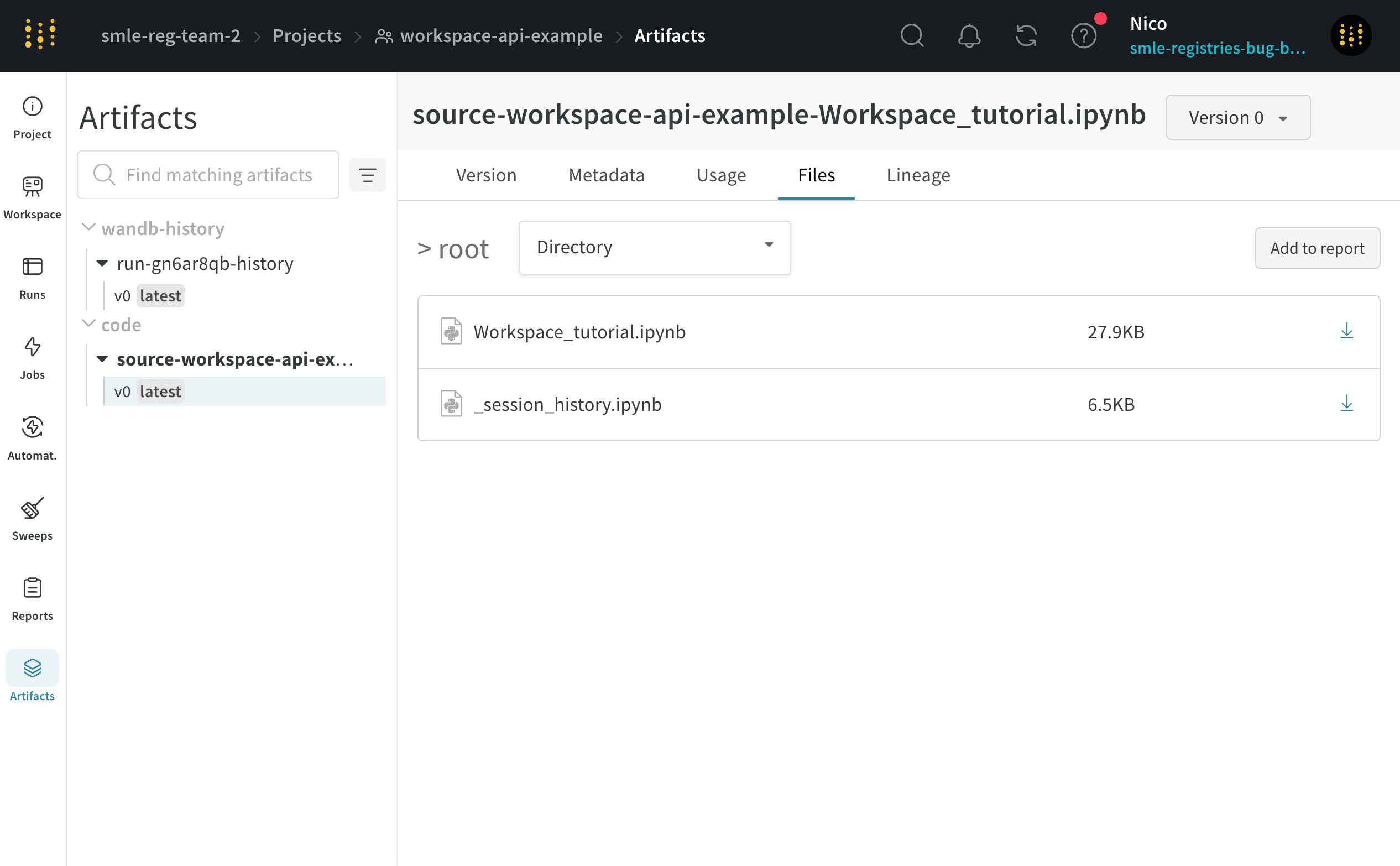
requirements.txt shows the versions of each library the run used, and wandb-metadata.json and wandb-summary.json include information about the run. Other files may be uploaded, such as artifacts or media, depending on the run’s configuration.
To view files logged to an artifact:
- Select the Artifacts tab from the project sidebar.
- Select an artifact from the list to view the details page for the latest version of that artifact.
- Select the Files tab to view all files associated with that artifact.
Lineage panel
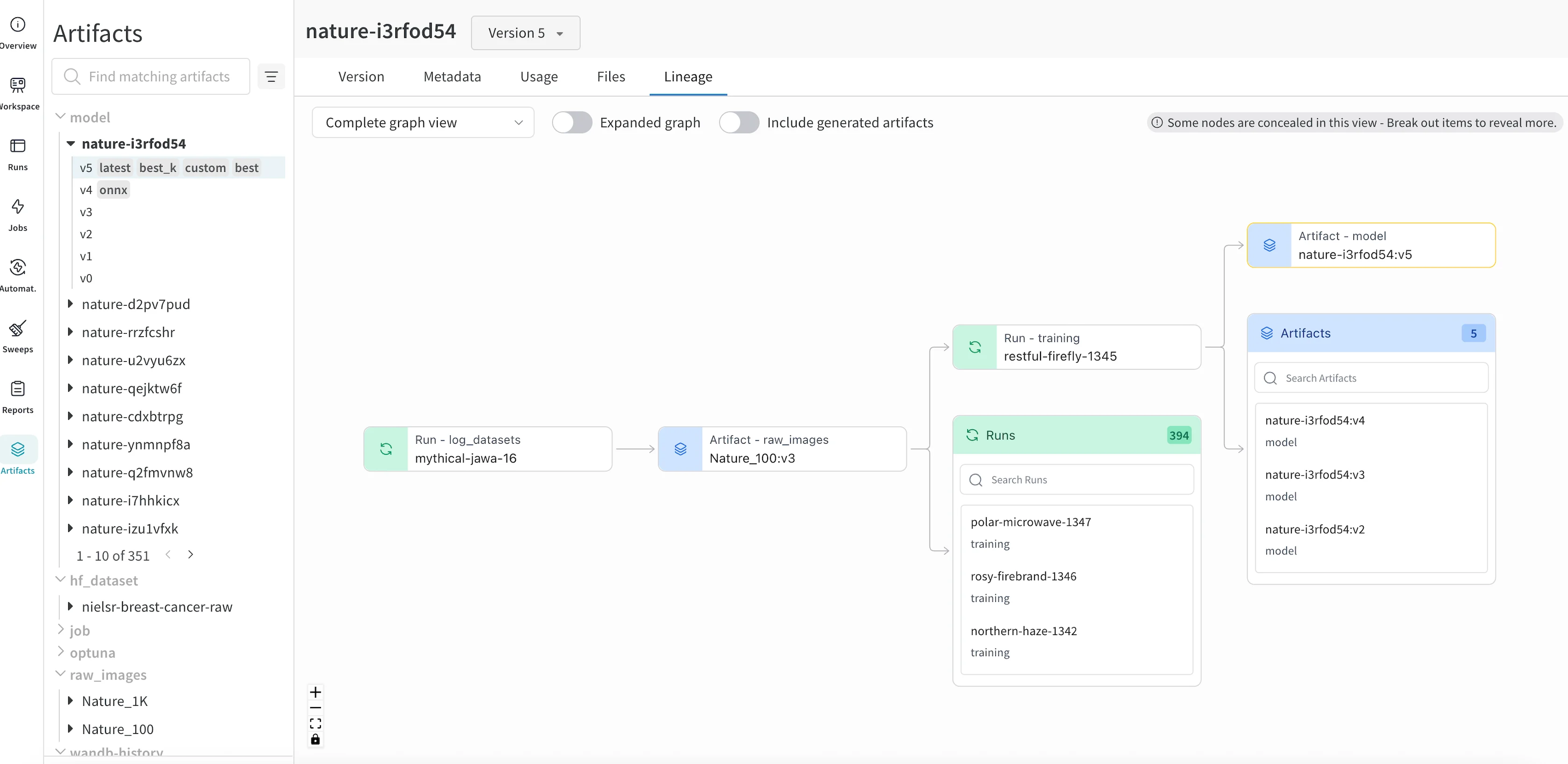
Versions tab
- Select the Artifacts tab from the project sidebar.
- Select an artifact from the list to view the details page for the latest version of that artifact.
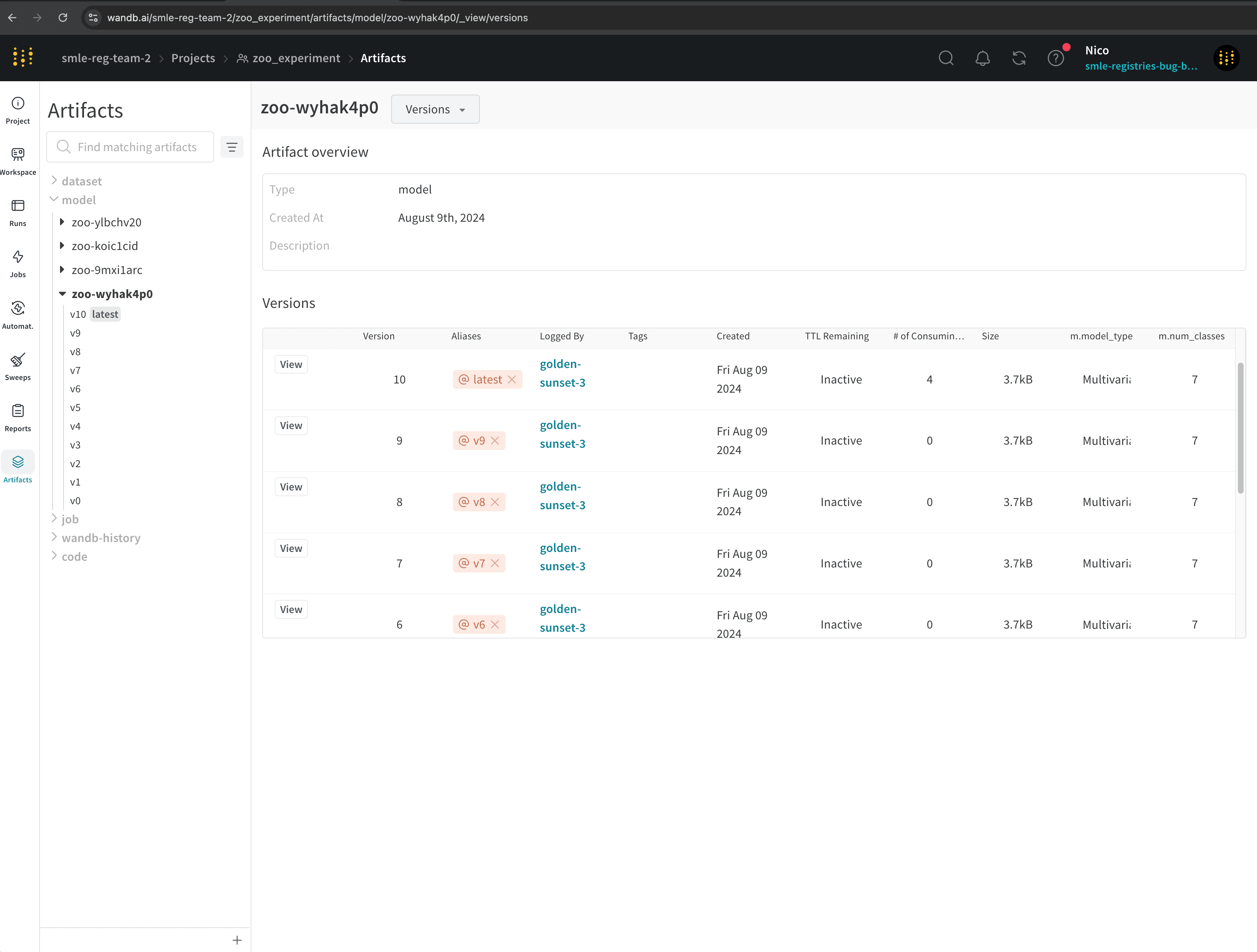
- Select the Versions tab to view all versions of that artifact.
- From the dropdown (next to the artifact name), select All Versions.
"zoo-wyhak4p0".
Create a project
Create a project to start organizing your runs, artifacts, and reports. You can create a project in the W&B App or programmatically by specifying a project in a call towandb.init().
- W&B App
- Python SDK
In the W&B App, you can create a project from the Projects page or from a team’s landing page.From the Projects page:
- Click the global navigation icon in the upper left. The project sidebar opens.
- In the Projects section of the navigation, click View all to open the project overview page.
- Click Create new project.
- Set Team to the name of the team that owns the project.
- Specify a name for your project using the Name field.
- Set Project visibility, which defaults to Team.
- Optional: Provide a Description.
- Click Create project.
- Click the global navigation icon in the upper left. The project sidebar opens.
- In the Teams section of the navigation, click the name of a team to open its landing page.
- In the landing page, click Create new project.
- Team is automatically set to the team that owns the landing page you’re viewing. If necessary, change the team.
- Specify a name for your project using the Name field.
- Set Project visibility, which defaults to Team.
- Optional: Provide a Description.
- Click Create project.
Organization home and Recent Activity
In the W&B App, the organization home page summarizes recent work. The Recent Activity viewer shows recent runs. Choose Your projects to see your own runs, or Organization to see recent runs by your colleagues.- Use Search to filter the activity list.
- Use Sortable columns to reorder rows by the column you care about.
- The Notes and tags columns display automatically if a run includes these details.
Star a project
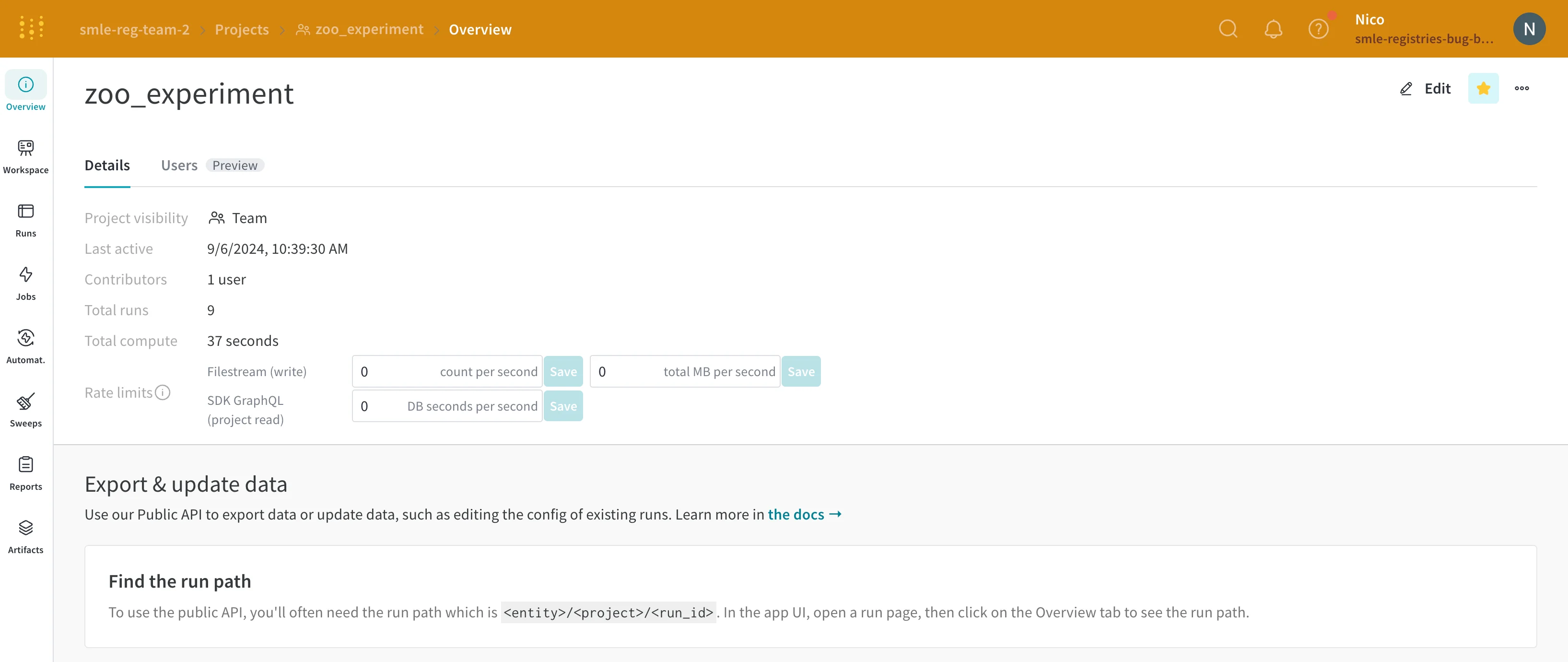
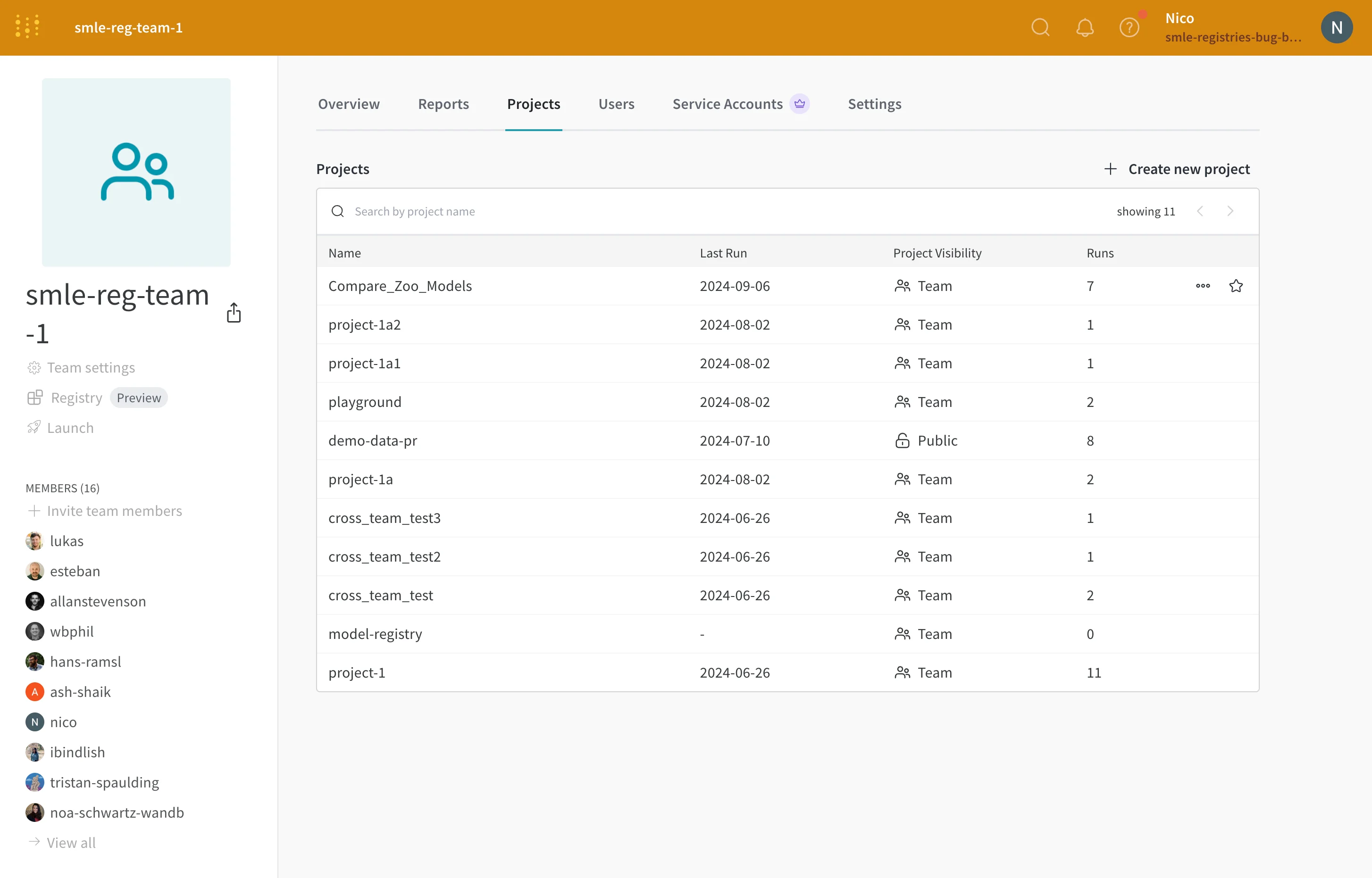
Add a star to a project to mark that project as important so you and your team can find it. Starred projects are grouped at the top of the Projects page. Access up to 10 recent projects in the Projects list in the top-left Global navigation menu, with starred projects listed first. You can mark a project as important in two ways: from a project’s overview tab or from your team’s profile page.- Project overview
- Team profile
- Navigate to your W&B project on the W&B App at
https://wandb.ai/<team>/<project-name>. - Select the Overview tab from the project sidebar.
- Click the star icon in the upper right corner next to the Edit button.
Delete a project
You can delete your project using the action () menu on the right of the overview tab.- Navigate to your W&B project.
- Select the Overview tab from the project sidebar.
- Click the action () menu in the upper right corner.
- Select Delete project from the dropdown menu.
Add notes to a project
Add notes to your project to document context, decisions, or observations. You can add notes either as a description overview or as a markdown panel within your workspace.Add description overview to a project
Descriptions you add to your page appear in the Overview tab of your profile.- Navigate to your W&B project.
- Select the Overview tab from the project sidebar.
- Click Edit in the upper right corner.
- Add your notes in the Description field.
- Select the Save button.
Create reports to create descriptive notes comparing runsYou can also create a W&B Report to add plots and markdown side by side. Use different sections to show different runs, and tell a story about what you worked on.
Add notes to run workspace
- Navigate to your W&B project.
- Select the Workspace tab from the project sidebar.
- Click the Add panels button from the top right corner.
- Select the TEXT AND CODE dropdown from the modal that appears.
- Select Markdown.
- Add your notes in the markdown panel that appears in your workspace.